Artwork
Where album covers come from, how to choose your own, find missing covers online, replace small covers with larger ones, and how artwork reaches your iPod.
Every album in ClassicTunes can have a cover. It's shown in the album grid, on the album's page, in Now Playing, and on your iPod. This page covers where covers come from and every way to add or change them.
Covers for music you add
When you add songs, ClassicTunes looks for a cover in this order:
- Inside the files. The cover embedded in the song, including FLAC files, which macOS itself doesn't read covers from.
- In the songs' folder. An image next to the files named cover, folder, front, album or artwork (as .jpg, .jpeg or .png), such as cover.jpg or folder.jpg.
- Online, for albums still without one: Apple and MusicBrainz are searched, and a cover is added only where the artist and album clearly match.
Whether ClassicTunes looks online is set in Settings › General › Adding songs › Albums added without a cover:
| Choice | What happens |
|---|---|
| Ask each time (the default) | After adding albums without covers, ClassicTunes asks "Look online for covers?" Click Look Online or Not Now. Turn on Don't ask again to use your answer from then on. |
| Look online | Covers are looked for straight away, without asking. |
| Don't look online | Only covers in the files and their folders are used. |
When the Add to Library window is on, it has its own Find covers for albums without one option, and shows each cover it finds before anything is added. See Your library.
Songs imported from the Music app bring their artwork with them. Songs imported from an iPod bring the covers from the iPod's own artwork database. Videos without a cover use a frame from the video.
Choose your own cover
Any of these sets the cover for an album, or for the songs you've selected:
- Drop an image on the cover at the top of an album's page.
- Right-click an album or songs and choose Artwork › Choose Artwork…, or use the Artwork menu on an album's page. Pick an image and click Use Image.
- In Get Info (⌘I), open the Artwork tab and click Add Artwork…, or drag an image onto the artwork. Remove Artwork takes it off.
JPEG and PNG images work best. If ClassicTunes can't read an image, it says so.
Click the cover on an album's page to see it larger, with its size in pixels. Press Esc or click to close it.
Search for a cover online
Right-click an album (or select several) and choose Artwork › Search for Artwork Online…. It's also in the Artwork menu on an album's page.
ClassicTunes searches Apple and MusicBrainz's Cover Art Archive and shows the covers it finds beside each album. Click a cover to use it. For each album you can also:
- Edit Search…: search with a different album title or artist, or just one of them. An artist alone lists the artist's albums, and a title alone finds albums with that title by anyone. Click Search.
- Upload Image…: choose an image of your own instead.
After you choose a cover, you can click another to change it. Click Done when you've finished.
Find Missing Artwork
Tools › Find Missing Artwork… goes through every album that has no cover. It's also in Settings › General › Info.
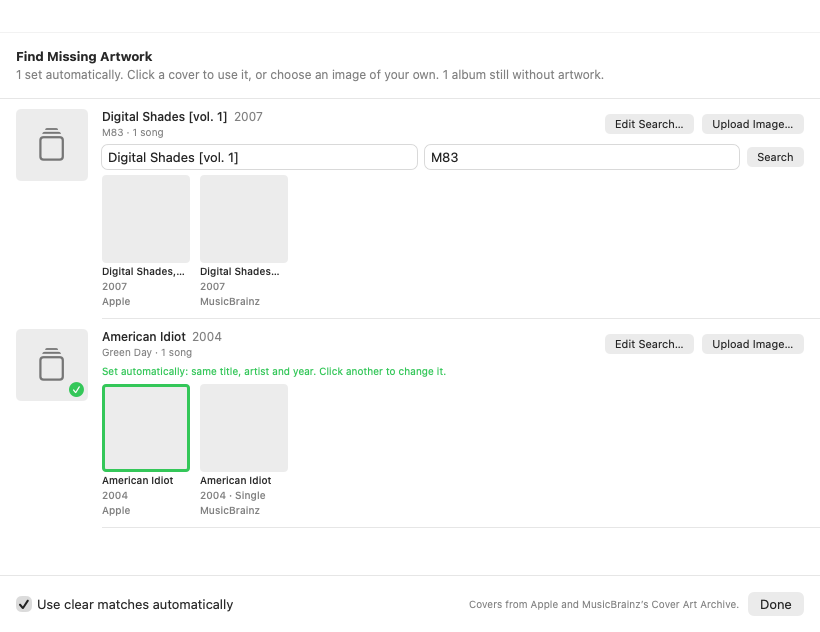
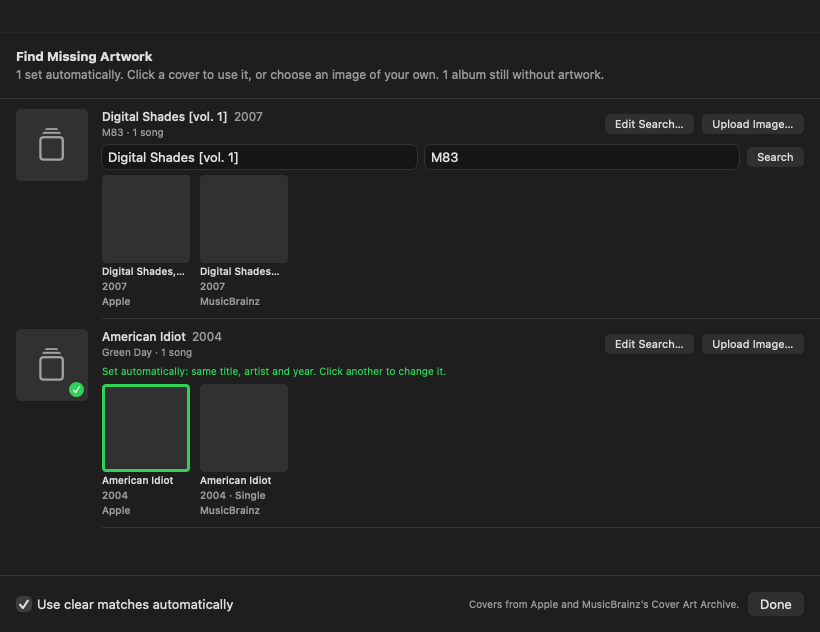
- It checks your files and the Music app again, in case a cover is there now.
- For albums still without one, it searches Apple and MusicBrainz, several albums at a time.
- Each album is listed with the covers found. Click one to use it, or use Edit Search… or Upload Image… as above.
With Use clear matches automatically turned on, a cover with the same album title, artist and year is used without asking. You can still click another cover to change it.
If nothing is found for an album, it says so; try Edit Search… with a corrected title or artist, or upload an image. Click Done at any time; covers you've already chosen stay.
Find Better Artwork
Covers that came from old rips or small downloads can look blurry on a large screen. Tools › Find Better Artwork… looks for larger copies of covers under 1000 pixels wide.
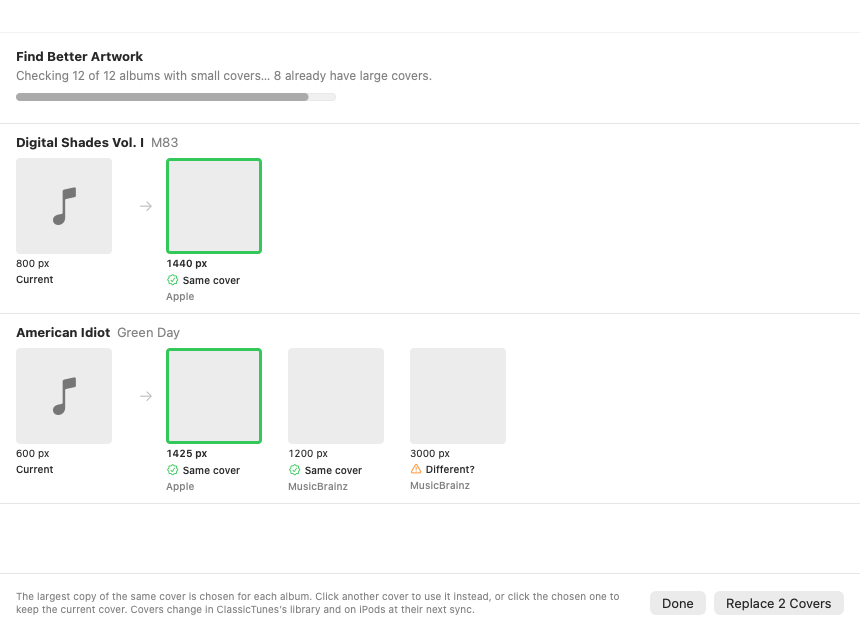
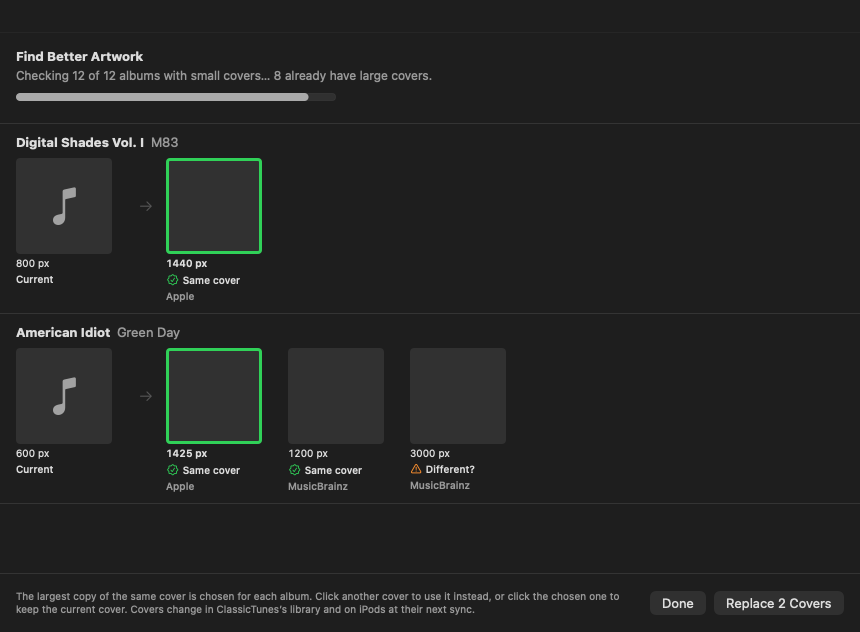
For each album with a small cover, it searches Apple and MusicBrainz and compares the images, so a different edition's cover isn't picked by mistake. Each album is listed with its Current cover and every larger one found, with its size in pixels, where it's from, and whether it's the Same cover or Different? (another edition, a scan or a wrong match).
- The largest copy of the same cover is chosen to start with.
- Click another cover to use it instead, for example a smaller but cleaner digital cover rather than a big scan.
- Click the chosen cover again to keep the current one.
Nothing changes until you click Replace … Covers. Done closes the window.
To check a single album, choose Artwork › Find Better Artwork… from its right-click menu or its page.
Re-read artwork from files
If you've changed the cover inside some files with another app, right-click them and choose Artwork › Re-read Artwork from Files. ClassicTunes reads the cover from each file, or from an image in its folder. Albums that still have no cover are then looked up online, and a cover is added only where the album clearly matches.
To re-read artwork whenever you re-read song details, turn on Settings › General › Info › Also re-read artwork when re-reading info. It applies to Re-read Info from Files, Re-read Info for All Music, and the starting choice in Look Up and Replace Info.
Covers from Look Up and Replace Info
When you replace an album's details with Look Up and Replace Info…, you can also use the release's cover: turn on Also use this release's artwork (for one album) or Also add the release's cover to albums without one (for several). See Tidying up your library.
Covers downloaded for albums and CDs have white scanner borders trimmed off automatically.
Artwork on your iPod
Covers are converted to the iPod's own thumbnail sizes during each sync, so they appear in the iPod's menus and Now Playing. Changed covers reach the iPod at its next sync.
To sync without artwork (for example to save a little space or time), turn off Settings › General › Syncing › Sync album artwork.
From AppleScript and Shortcuts
Scripts can find missing covers and better covers for the whole library or chosen tracks' albums, and read each track's artwork size (its width in pixels, 0 when it has none). Both commands return how many albums changed, and can take a while, so give them a long timeout.
tell application "ClassicTunes"
    with timeout of 3600 seconds
        set added to find missing artwork
        set improved to find better artwork (every track whose artwork size < 600)
    end timeout
    return (added as text) & " covers added, " & improved & " improved"
end tell
find missing artwork adds a cover only where the title, artist and year clearly match, and find better artwork replaces a cover only where the same artwork is found larger.
In Shortcuts (macOS 13 and later), use Find Missing Artwork and Find Better Artwork; leave Tracks empty to check every album. See AppleScript and Shortcuts.