iPod tools
Rockbox support, click wheel and Rockbox games, importing from an iPod, diagnostics, and the other tools on an iPod's page.
Besides syncing, an iPod's page has tools for the things around it: Rockbox, games, copying music off the iPod, and checking it's healthy. This page covers each one, roughly in the order they appear on the page.
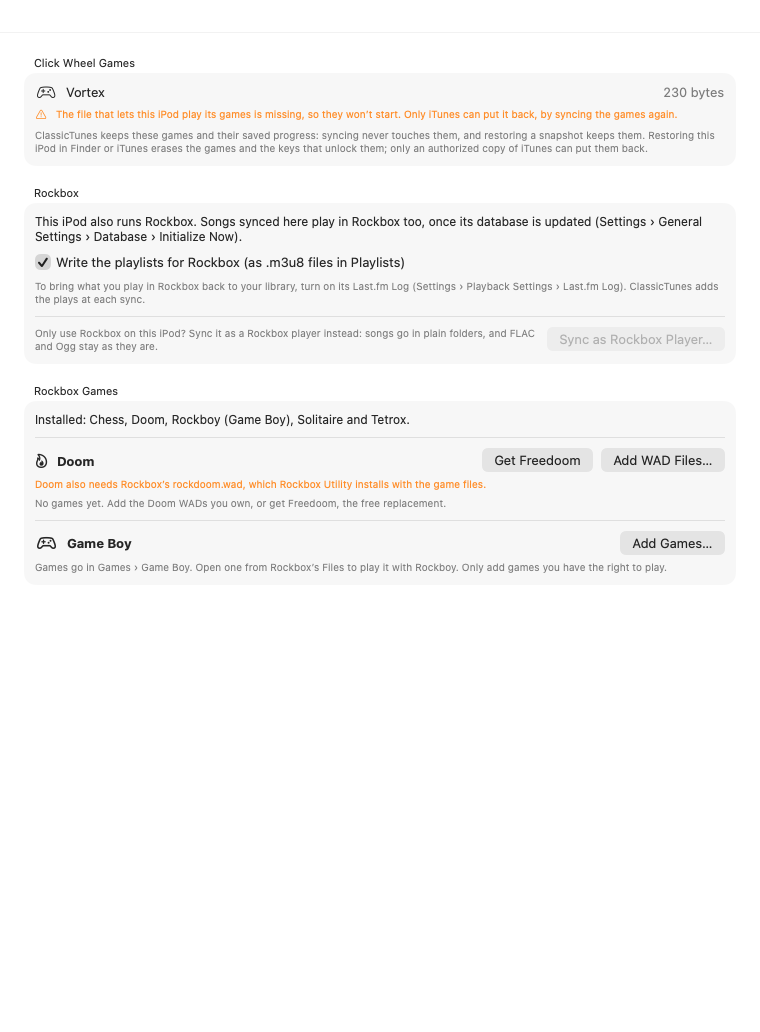
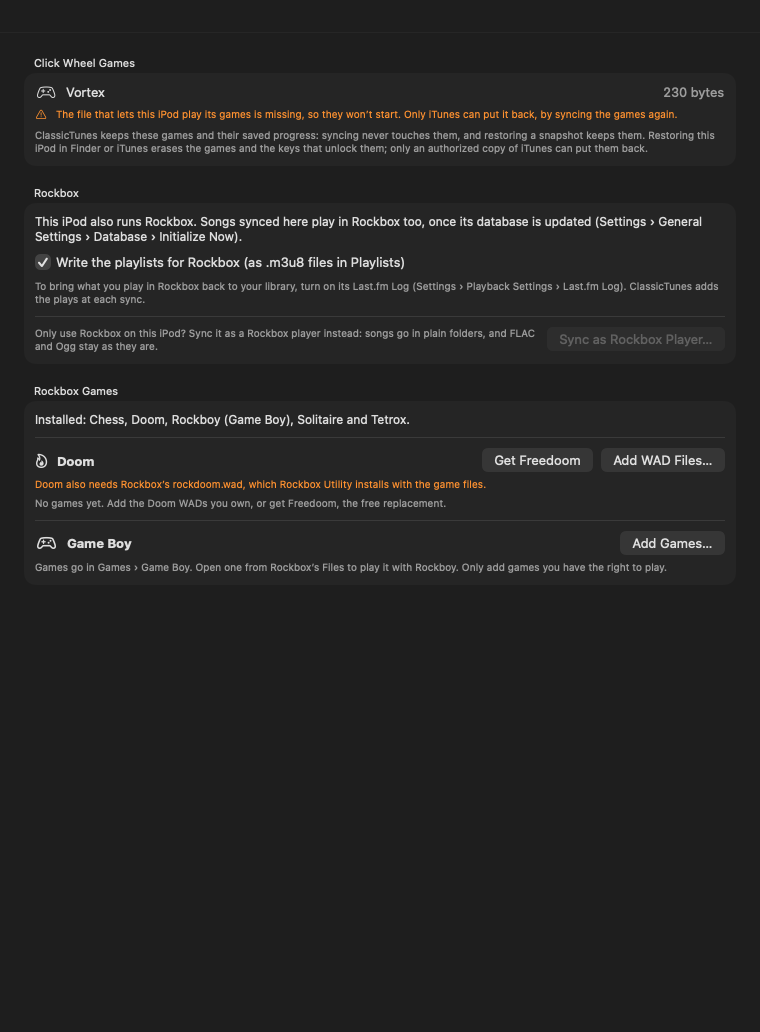
Click Wheel Games
If your iPod has Apple's click wheel games on it (the games iTunes used to sell for the iPod classic, the iPod with video and the iPod nano), its page lists them in Click Wheel Games, with each game's size. The section only appears when there are games.
ClassicTunes keeps these games safe:
- Syncing never touches them, or their saved progress and high scores.
- Restoring a snapshot keeps them. A restore never removes a game or winds back its saves; see Snapshots.
ClassicTunes can't add games. Only an authorized copy of iTunes can put them on an iPod, along with a file that lets that particular iPod play them. If that file is missing, the section warns that the games won't start.
Important: Restoring an iPod in Finder or iTunes erases its games and the keys that unlock them, and only an authorized copy of iTunes can put them back. Take a snapshot first if you want to keep them.
Rockbox
Rockbox is a free, open-source firmware that many people install on their iPods, alongside Apple's or instead of it. When ClassicTunes finds Rockbox on an iPod, the iPod's page has a Rockbox section.
Note: Rockbox support is experimental: it follows Rockbox's documentation but hasn't yet been tried on every Rockbox iPod. Take a snapshot before your first sync if you want a way back.
Songs play in Rockbox too
Rockbox finds songs by their tags, so songs synced to the iPod the usual way play in Rockbox as well. After a sync, update Rockbox's database on the iPod so it sees the new songs: Settings › General Settings › Database › Initialize Now.
Playlists for Rockbox
Rockbox can't read the playlists in Apple's database, so at each sync ClassicTunes also writes the synced playlists as .m3u8 files in the iPod's Playlists folder, which Rockbox opens. ClassicTunes only ever replaces or removes the playlist files it wrote itself.
To stop this, turn off Write the playlists for Rockbox (as .m3u8 files in Playlists).
Plays from Rockbox
Rockbox can keep a log of what you play. ClassicTunes reads it at the start of each sync and adds the plays to your library's play counts and last played dates, each play once. Songs are matched by title and artist, and by album or length. Skipped songs aren't counted. With scrobbling on, the plays are sent to ListenBrainz too.
To turn the log on, on the iPod in Rockbox choose Settings › Playback Settings › Last.fm Log. Once there's a log, the section says how far it has been read.
Sync as Rockbox Player
If you only use Rockbox on this iPod, you can sync it as a plain Rockbox music player instead: songs go in ordinary folders, and FLAC and Ogg files stay as they are rather than being converted.
- Click Sync as Rockbox Player….
- Confirm with Sync as Rockbox Player.
From then on the iPod appears under Music Players in the sidebar and syncs like any other music player. Apple's firmware won't see songs synced that way, and the songs already synced for Apple's firmware stay until you remove them.
To go back, delete the hidden .classictunes folder on the iPod (in Finder, press ⇧⌘. to show hidden folders).
Rockbox Games
On an iPod (or music player) with Rockbox, Rockbox Games lists the games Rockbox has installed, such as Chess, Doom, Rockboy and Tetrox. If none are installed, add them with Rockbox Utility (Installation › Game files).
Doom
Rockbox can play Doom, but you need the game's files (WADs):
- Get Freedoom downloads Freedoom, the free replacement for Doom (about 24 MB), checks the download against its published checksum, and puts its two games on the iPod as
doom.wadanddoom2.wad. If the iPod already has files with those names, they're left as they are. - Add WAD Files… copies Doom WADs you own onto the iPod.
Doom also needs Rockbox's own rockdoom.wad, which Rockbox Utility installs with the game files. The section warns if it's missing.
Game Boy
Add Games… copies Game Boy games (.gb and .gbc) to Games › Game Boy on the iPod. To play one, open it from Rockbox's Files with Rockboy. Only add games you have the right to play.
Remove a game file
Click the trash button beside a WAD or Game Boy game, then Remove. It's deleted from the iPod.
Maximum Volume
If your Mac is set to a European region, the page also has a Maximum Volume note, explaining the volume limit on iPods sold in Europe and why ClassicTunes doesn't change it. See Connecting an iPod.
Import Media from iPod
Import Media from iPod… copies what's on the iPod into your library: useful for an iPod whose music isn't on your Mac any more, or one you've been given.
Click it, then Import to Library. ClassicTunes adds everything on the iPod that isn't in your library yet:
- Songs, videos and audiobooks, with their covers (from the iPod's own artwork, since the files often have none).
- Play counts (including plays not yet synced), ratings, last played dates, dates added and audiobook positions, where the files don't have them.
- The iPod's playlists, including On-The-Go playlists and smart playlists.
- Its podcasts, as subscribed shows with their episodes (or as songs when a show's feed can't be reached).
Songs you already have (matched by title, length, and artist, album or file size) are left as they are and aren't copied again. Nothing on the iPod changes. When it's done, ClassicTunes says what was added, such as "Added 412 songs, 3 videos and 12 podcast episodes to your library."
The button is off while the iPod is syncing, and when the iPod has no songs or podcasts.
Show in Finder
Show in Finder opens the iPod in Finder, for example to get at files you keep on it in disk mode.
Run Diagnostics
Run Diagnostics… checks the iPod's health and connection. It's also in the menu bar as iPod › Run iPod Diagnostics…, for the iPod whose page is open (or the first one connected). Your music and settings on the iPod aren't changed.
Choose Run all checks or Choose checks, then click Run Diagnostics:
| Check | What it looks at |
|---|---|
| Device and firmware | Model, serial number, firmware, and whether the iPod reports a damaged disk. |
| USB connection | USB speed and power, and read errors since the iPod was connected. |
| Music database | Reads the iPod's music database and looks for missing or stray files, including test data left by an interrupted drive test. |
| File system | Checks the iPod's disk with Disk Utility. The iPod can't be used until the check finishes. |
| Drive test | Reads every song, then writes test data to free space, reads it back and deletes it. Choose 128 MB, 512 MB or 2 GB of test data. Takes a few minutes; longer on a full hard-drive iPod. |
| Drive health (SMART) | The drive's own health report, if the iPod passes it on. Most iPods don't over USB; the result then explains how to see it in the iPod's own diagnostic mode. |
| Battery | iPods don't report battery health over USB, so this explains how to check it on the iPod itself. |
Each result is marked OK, Info, Warning, Problem or Not available, with details and advice. The heading sums it up: "Everything checked looks healthy.", "Some things need attention." or "Problems were found."
When the checks are done:
- Remove Stray Files… appears when the music database check finds song files the iPod's database doesn't list (usually left over from an interrupted sync) or test data from a drive test that didn't finish. They only take up space. Removing them deletes them from the iPod (not to the Trash); your music isn't affected. To keep you safe, ClassicTunes only does this on a disk that identifies itself as an iPod, and refuses when the database is missing or when more than a quarter of the files would go.
- Eject iPod ejects the iPod but keeps the results open, so you can unplug it and follow the steps for checks done on the iPod itself (such as the battery).
- Copy Report copies all the results as text, to keep or to send with a question.
- Run Again runs the same checks again; Change Checks… goes back to choosing them.
- Stop stops the checks while they run.
Diagnostics can't run while the iPod is syncing.
Find Songs iPods Can't Play
iPod › Find Songs iPods Can't Play… finds songs in your library that iPods can't play as they are (for example, sample rates above 48 kHz, or files saved in a streaming layout) and converts them, keeping their details, artwork and play history. Songs like these are otherwise left off when you sync. See Tidying up.
From AppleScript and Shortcuts
Scripts can see an iPod's games and whether it runs Rockbox, and import everything on it into the library:
tell application "ClassicTunes"
    set myIPod to iPod 1
    log "Click wheel games: " & (games of myIPod)
    if rockbox of myIPod then log "Rockbox games: " & (rockbox games of myIPod)
    with timeout of 3600 seconds
        set added to add to library myIPod
    end timeout
    log "Added " & added & " items from the iPod."
end tell
add to library returns how many songs, videos, audiobooks and podcast episodes were added. In Shortcuts (macOS 13 and later), use Import Media from iPod. Diagnostics, Rockbox settings and adding games are only in the app. See AppleScript and Shortcuts.