Photos
Import photos from cards, cameras and folders, browse the Photos app's library, and choose the photos and videos each iPod gets.
iPods with a color screen show photos. ClassicTunes can sync photos from two places, and you can use either or both:
- Its own photo library, filled from memory cards, cameras and folders. You don't need the Photos app or iCloud.
- The Photos app's library, browsed by year, month and album.
Click Photos in the sidebar's library section, then choose Library or Photos App in the toolbar.
Only screen-sized copies go to the iPod. Your photos themselves stay where they are.
ClassicTunes' photo library
Library shows All Photos and your albums as tiles. Each album says whether it Syncs to iPod or is Not syncing. Click a tile to see its photos; the Albums back button returns to the tiles.
Import photos
Click Import Photos in the toolbar:
- From a Folder or Files… lets you choose photos, or a folder of photos (its subfolders are included).
- From "card or camera" opens a memory card or camera that's connected.
Memory cards and cameras connected over USB (as a disk, or through Image Capture) also appear in the sidebar under Cameras & Cards. Click one to see its photos.
In the import window:
- Every photo found has a checkbox. Photos already in your library are unticked, dimmed and marked "In library".
- Select All or Select None changes them all. The bottom of the window counts the photos, the new ones and the selected ones.
- Type a name in Album: for the album the photos go in.
- Click Import.
When importing:
- Photos already in your library (the same name, size and date) are skipped.
- A camera RAW file is left out when the camera also saved a JPEG or HEIC of the same shot.
- Photos are copied into your library's folder, sorted into folders by the date they were taken. Nothing is ever deleted from the card or camera.
- Photos are dated by when the camera took them, or by when they were imported if the photo doesn't say.
Albums and photos
Right-click an album for:
- Sync to iPod: see Choosing photos for an iPod.
- Rename…
- Delete Album…: Delete Album Only keeps its photos in All Photos; Delete Album and Its Photos moves them to the Trash (photos also in another album are kept).
In an album or All Photos, click a photo to select it (⌘-click for more), and double-click one to open it in your Mac's usual app for photos. Hover over a photo to see its file name, when it was taken and where it came from. Right-click photos for Show in Finder, Remove from Album and Delete from Library (which moves them to the Trash).
The Photos app's library
Photos App browses the Photos library on your Mac. The first time, click Allow Access to Photos… and allow it when macOS asks. If you've turned access off, ClassicTunes says so, with a button to open the Photos privacy settings and Check Again.
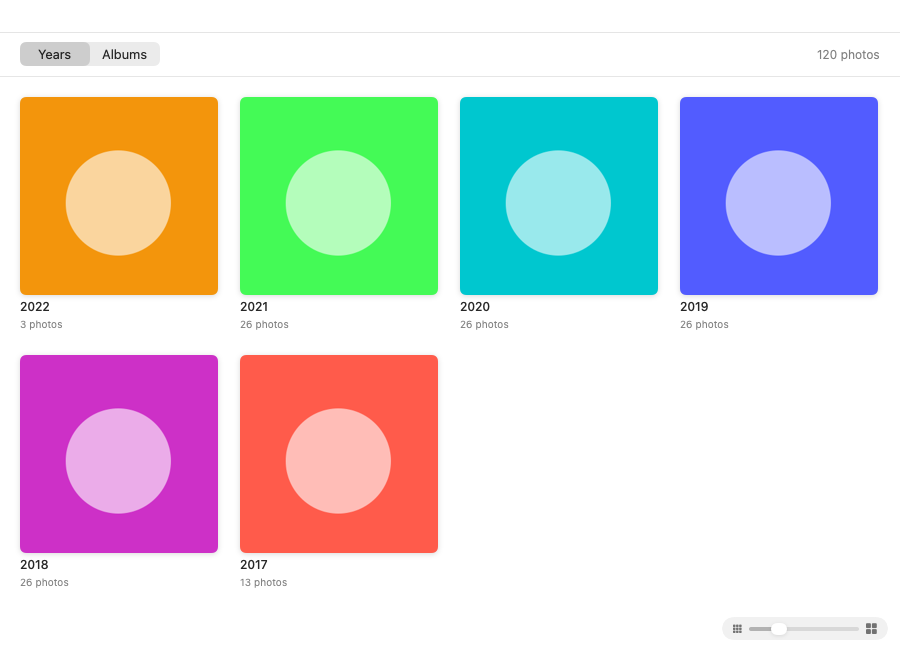
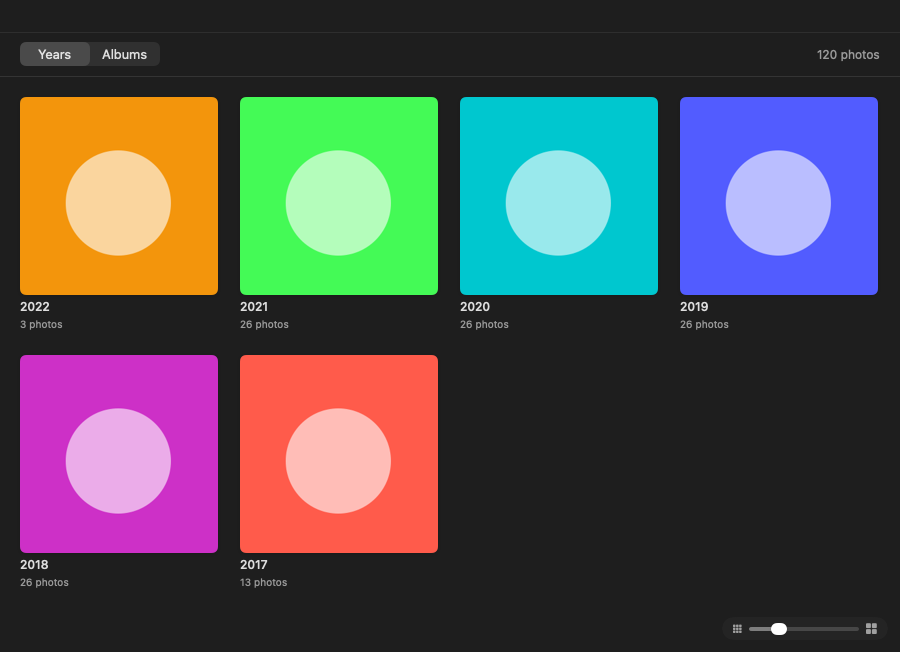
Choose Years or Albums in the toolbar.
- Years shows a tile for each year; click one to see its months, and a month to see its photos by day.
- Albums shows your Photos albums; click one to see its photos.
Each tile shows its newest photo and how many photos it has. An iPod badge means one of this library's iPods has it; hover over the badge to see which. The Back button goes up a level, and Refresh reloads the library. Photos you add in Photos (from your phone, say) appear a few seconds later by themselves.
Thumbnails load as they scroll into view, from what's on your Mac, so even a very large library opens quickly and nothing is downloaded from iCloud just to browse.
View a photo
Click a photo to see it large. Use the arrows either side, or the ← and → keys, for the previous and next photo. Below it are when it was taken, a heart for a favorite, and its place in the month or album ("12 of 80"). Click Close or press Esc when you've finished.
A video plays in the viewer, showing its length. A video that's only in iCloud is downloaded to play, since you asked for it.
Add years, months and albums to an iPod
Select tiles the way you select albums in Music: ⌘-click, ⇧-click, drag a box in empty space, or press ⌘A. A bar appears saying how many items and photos are selected; its Sync to iPod menu has Add to "iPod" and Remove from "iPod" for each of this library's iPods. Click Done or press Esc to clear the selection.
You can do the same for one tile by right-clicking it (which also has Open). If no iPod has synced with this library yet, the menu says "Sync an iPod with this library first."
Choosing photos for an iPod
Each iPod has its own photos. On the iPod's page, in Sync Options, turn on Sync photos and click Choose…. The summary beside it says what's chosen.
Tick any of:
- All Photos: every photo in the Photos app.
- Albums: your Photos albums, smart albums and Favorites among them.
- By Date Taken: whole years, or open a year and tick single months.
- ClassicTunes Albums: albums in ClassicTunes' own photo library.
Each shows how many photos it has, and a photo chosen twice counts once. The top of the window says how much space each photo takes on this iPod.
Below the list:
| Option | What it does |
|---|---|
| Use at most … for photos | Limits the space photos take, from 500 MB up. When what's chosen doesn't fit, the newest first or favorites first are kept. |
| Include videos, using at most | Also sends the chosen albums' and months' videos, using all the space they need or up to a limit you pick. Only for iPods that play video. |
| Only photos stored on this Mac (leave out ones only in iCloud) | When off, photos only in iCloud are downloaded at screen size (never the originals) the first time they're synced. |
The bar at the bottom shows how many photos are chosen and about how much space they'll take on the iPod, against its capacity.
Click Done to save. Choices from the Photos app need Photos access; if you haven't allowed it, the window offers Allow Access…. If access is turned off later, ClassicTunes doesn't sync that iPod until it's allowed again, so its photos and videos from the Photos app stay on it.
Note: The Sync to iPod switch on a ClassicTunes album is where an iPod starts: an iPod whose photos you haven't chosen yet gets the albums marked to sync. Once you've used Choose… for an iPod, it follows its own choices.
Videos from the Photos app
With Include videos on, videos from the chosen albums and months go to iPods that play video, in the iPod's Videos menu as movies, newest first within any limit. They're converted the same way as the library's videos (H.264, about 6 MB a minute), once, and kept for later syncs.
How photos sync
At each sync, ClassicTunes adds only the photos the iPod doesn't have yet and removes the ones no longer chosen, rather than writing them all again, so syncing a big photo library stays quick. It keeps a record on the iPod of which photo is where. Photos are written again from scratch only when another app has changed the iPod's photos, or when removals have left a lot of unused space.
iPods with no color screen can't show photos; for those, Sync photos is turned off with a note saying so. See Syncing.
From AppleScript and Shortcuts
Scripts can choose an iPod's photos:
tell application "ClassicTunes"
    set myIPod to iPod 1
    set syncs all photos of myIPod to false
    set chosen photo albums of myIPod to {"Favorites", "Holiday"}
    set chosen photo periods of myIPod to {"2019", "2024-07"}
    set photo space limit of myIPod to 2.0E+9 -- 2 GB
    set photos only on this Mac of myIPod to true
    set photo videos of myIPod to false
end tell
chosen photo albums takes Photos albums and ClassicTunes albums by name; chosen photo periods takes years ("2019") and months ("2019-07"). photo video space limit limits the videos. See AppleScript.
In Shortcuts (macOS 13 and later), use Choose Photos to Sync. See Shortcuts.