Playing Music
Play songs, videos, podcasts and audiobooks on your Mac, with Up Next, shuffle and repeat, the equalizer, AirPlay and the Play key.
ClassicTunes plays everything in your library on your Mac: songs, videos, podcast episodes, audiobooks and CDs. Songs play with no gaps between them, and what you play on the Mac counts as a play, which reaches your iPod at the next sync.
Start playing
- Double-click a song in a list to play from that song through the rest of the list.
- On an album, artist or playlist page, click Play (from the first song) or Shuffle.
- Hover over an album or playlist cover and click the play button that appears.
- Right-click songs or albums and choose Play, Shuffle, Play Next or Add to Up Next. In a playlist, Play from Here plays the playlist starting with that song.
- Double-click a playlist in the sidebar to play it.
On an album or playlist page, Play turns into Pause while one of its songs is playing, and if you've paused, it carries on from where you stopped rather than starting over.
The player controls
The player sits in the middle of the toolbar.
| Control | What it does |
|---|---|
| Shuffle | Turns shuffle on or off. It's colored when it's on. |
| Previous | Goes back to the start of the song, or to the previous song if you're within the first 3 seconds. |
| Play/Pause | Plays or pauses. |
| Next | Skips to the next song. |
| Repeat | Click to go through off, repeat all and repeat one. It's colored when repeat is on. |
| Now playing | The cover, title, and artist and album of what's playing, with a thin progress bar. |
| Up Next | The list button at the right of the display opens Up Next. |
| Volume | The slider sets ClassicTunes' own volume. |
| AirPlay | Chooses where the sound goes. See AirPlay and Bluetooth. |
Move the pointer over the display to see the time played and the time left. Click or drag along the progress bar to move through the song.
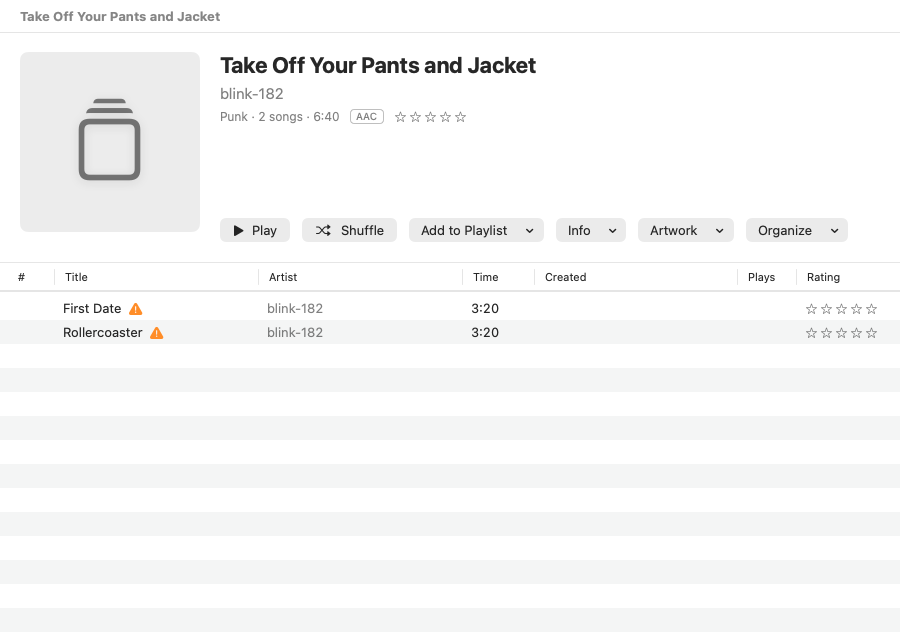
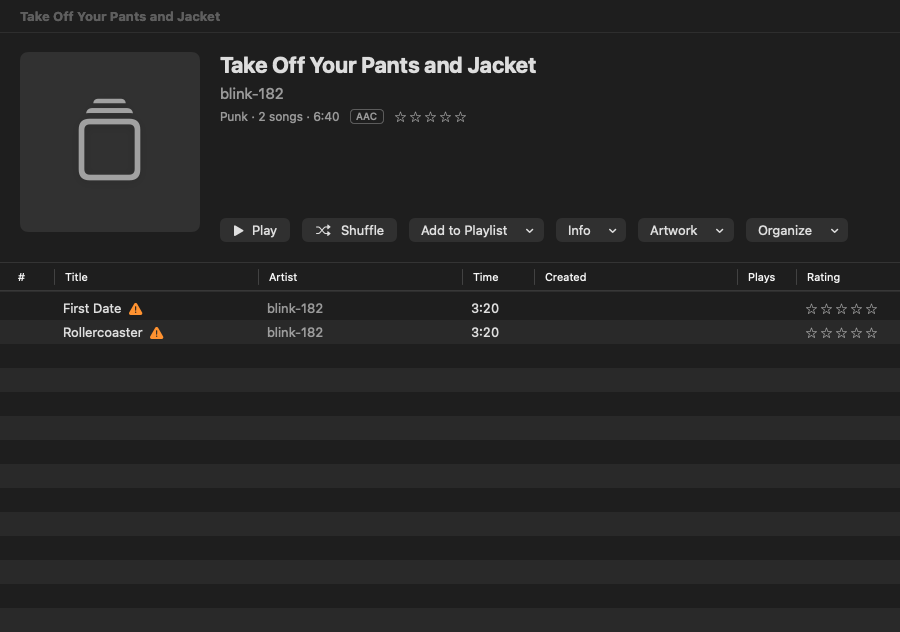
An "E" after a title marks a song with explicit lyrics, here and in every list.
Go to what's playing
Click the cover in the toolbar to go to the song that's playing, selected and scrolled into view: in its playlist if you started it from one, otherwise on its album (or in Audiobooks, Videos, Podcasts or on its CD's page).
Songs in other formats
Songs in formats macOS can't play itself (such as Ogg Vorbis, Opus, WMA, Monkey's Audio and WavPack) are converted to a copy the first time you play them. While that happens the display says "Preparing to play…" with how far it's got. The copy is kept, so the next time the song starts straight away. Your original file isn't changed.
The Controls menu
| Command | Shortcut |
|---|---|
| Controls › Play/Pause | Space |
| Controls › Next | ⌘→ |
| Controls › Previous | ⌘← |
| Controls › Increase Volume | ⌘↑ |
| Controls › Decrease Volume | ⌘↓ |
| Controls › Shuffle On/Off | |
| Controls › Repeat › Off, All or One | |
| Controls › Stop | ⌘. |
The Space bar plays and pauses whenever you're not typing in a text field. While you're typing, ⌘← ⌘→ ⌘↑ and ⌘↓ move the cursor in the text as usual, instead of changing songs or the volume.
Stop stops playback and empties the queue.
Up Next
Up Next is the list of what plays after the current song. Click the list button in the toolbar's display to see it.
- Play Next (right-click songs, albums or podcast episodes) puts them straight after the song that's playing.
- Add to Up Next puts them at the end of the queue.
- If nothing is playing, either one starts playing them.
- Double-click a song in Up Next to jump to it.
- Click the × beside a song to take it out of the queue, or Clear to empty the queue (the song playing keeps playing).
Turning shuffle on mixes up the rest of the queue; turning it off puts it back in its original order. With repeat all on, the queue starts again from the top when it ends (reshuffled, if shuffle is on). When the queue ends without repeat, the last song stays loaded, stopped at its start.
ClassicTunes remembers the queue, the song that was playing and where you were in it, even after you quit. The Play key can pick up from there.
The equalizer
Choose Window › Equalizer (⌥⌘E) to open the equalizer.
- On turns the equalizer on or off.
- The menu at the top chooses a preset: Manual, or one of the built-in presets (Acoustic, Bass Booster, Bass Reducer, Classical, Dance, Deep, Electronic, Flat, Hip-Hop, Jazz, Latin, Loudness, Lounge, Piano, Pop, R&B, Rock, Small Speakers, Spoken Word, Treble Booster, Treble Reducer and Vocal Booster), or one you've saved.
- Drag the Preamp slider and the ten band sliders (32 Hz to 16 kHz), each from −12 dB to +12 dB. Moving a slider switches to Manual. Double-click the number above a slider to set it back to 0.
- The ⋯ menu has Save Preset… (to keep the current settings under a name), Delete for a preset you saved, and Reset to Flat.
A song's own equalizer preset
A song can have its own preset: select it, choose File › Get Info (⌘I), click Options, and choose one from Equalizer. While that song plays, its preset is used instead of the equalizer window's (when the equalizer is on). Built-in presets also apply on the iPod.
Song options in Get Info
The Options tab of Get Info has more settings that change how a song plays. They're saved in ClassicTunes and on the iPod, since music files have no place for them.
| Option | What it does |
|---|---|
| Start and Stop | Plays only part of the song: from the start time to the stop time. |
| Volume Adjust | Makes the song louder or quieter, from −100% to +100%. |
| Equalizer | The song's own preset (see above). |
| Remember playback position | The song carries on where you left off next time. Audiobooks do this unless you turn it off. |
| Skip when shuffling | Leaves the song out when shuffling, on the iPod and on your Mac. It still plays if you choose it, or add it to Up Next. |
| Part of a gapless album | Tells the iPod to play the album with no gaps. |
Sound Check
Settings › General › Playback › Sound Check plays songs at the same perceived volume, so a quiet old recording and a loud new one sit together comfortably. When you turn it on, ClassicTunes measures each song's loudness once, in the background (it shows how many it's done). Songs that already carry ReplayGain or iTunes loudness values use those.
The values go to the iPod too, which uses them when its own Sound Check setting (Settings › Playback on the iPod) is on.
Other players and headphones
With Settings › General › Other players › When ClassicTunes plays, pause other players on, starting playback in ClassicTunes pauses Music, Spotify, TV, QuickTime Player and VLC if they're playing. macOS asks once whether ClassicTunes may control each of them. Sound in a web browser can't be paused this way.
Whether that setting is on or off, ClassicTunes pauses when you take out AirPods or unplug headphones, and carries on by itself if the same ones come back within half an hour. It never carries on through a different device, such as the Mac's speakers.
AirPlay and Bluetooth
Click the AirPlay button at the right of the player to choose where ClassicTunes plays: AirPlay speakers (several at once, if they support it) or Bluetooth headphones and speakers. Only ClassicTunes' sound moves; the rest of the Mac's sound stays where it is.
Media keys, AirPods and Control Center
The play, next and previous keys on your keyboard, the controls on AirPods and other headphones, and the Now Playing controls in Control Center all control ClassicTunes while it's playing. Control Center shows the song with its cover, and you can move through it from there.
The Play key
Normally, pressing the Play key when nothing is playing opens the Music app. ClassicTunes can answer it instead. Turn on Settings › General › Play key › Open ClassicTunes when the Play key would open Music, then choose:
- Play: what starts playing.
- Carry on where I left off: the queue you were last listening to, at the same place.
- Shuffle all songs
- A playlist: choose it from Playlist.
- Recently added: your newest 200 songs, newest album first.
- My current audiobook: the book you're partway through that you listened to most recently.
For a playlist and Recently added, Shuffle plays them shuffled. If what you chose can't play, ClassicTunes shuffles all songs.
This choice is for when the Play key opens ClassicTunes. When ClassicTunes is already open, the Play key carries on with what's in the queue. If ClassicTunes is closed, the Music app may appear in the Dock for a moment first: macOS opens Music when the Play key is pressed, and ClassicTunes closes it straight away.
- When it starts: Open the window, or Play in the background.
- Always open ClassicTunes instead of the Music app: quits Music whenever it opens, even from the Dock, and opens ClassicTunes instead.
The Play key (and headphone or AirPods play buttons) only comes to ClassicTunes when no other player has it: if another app was playing, the key still goes to that app. A small helper runs in the background to notice when the key would open Music; it needs no special permission. What plays is set for each library.
Videos
When you play a video, it opens in its own window. Closing the window pauses the video. See Videos.
CDs
Insert an audio CD and choose Play on its page (or right-click it in the sidebar) to play it straight from the disc, without importing it. See Importing CDs.
From AppleScript and Shortcuts
Scripts can play tracks and playlists, control playback and the volume, and see what's playing.
tell application "ClassicTunes"
    play playlist "Bedtime"
    set sound volume to 40
    delay 5
    if player state is playing then
        log (name of current track) & " by " & (artist of current track)
    end if
    next track
end tell
The commands are play, pause, playpause, start playing (what the Play key setting chooses), stop, next track and previous track, and the properties are current track, player state, player position and sound volume. See AppleScript.
In Shortcuts (macOS 13 and later), use Play Playlist, Play Artist, Play Tracks, Play/Pause, Start Playing, Pause, Next Track, Previous Track, Get Current Track and Set Volume. See Shortcuts.