Music players
Sync your library to music players that aren't iPods, such as the Shanling Q2, Innioasis Y1, Tangara, FiiO Echo Nano, a Rockbox player or any SD card.
ClassicTunes doesn't only sync iPods. Any music player that shows up on your Mac as a drive, or takes an SD card you can put in the Mac, can sync with your library too. Songs go on as ordinary files in folders, with a cover for each album and playlists as .m3u8 files, so the player finds them however it browses.
Players ClassicTunes knows
When you set up a player, you say what kind it is. That tells ClassicTunes which formats the player plays, what to convert other songs to, and what size of cover to write.
| Player | Plays | Other songs become |
|---|---|---|
| Shanling Q2 (and Q2 Pod) | MP3, AAC, Apple Lossless, FLAC, WAV, AIFF, Ogg Vorbis | AAC; lossless ones FLAC |
| Innioasis Y1 / Y3 | MP3, AAC, FLAC, WAV, Ogg Vorbis | AAC; lossless ones FLAC |
| Tangara | MP3, FLAC, WAV, Ogg Vorbis, Opus | FLAC |
| FiiO Echo Nano | MP3, AAC, FLAC, WAV | AAC; lossless ones FLAC |
| Fosi Audio DAP Neo | MP3, AAC, FLAC, WAV | AAC; lossless ones FLAC |
| New Matter Sudo | MP3, AAC, FLAC, WAV | AAC; lossless ones FLAC |
| Sprout (iPod motherboard) | MP3, AAC, Apple Lossless, FLAC, Opus | AAC; lossless ones Apple Lossless |
| Rockbox | MP3, AAC, Apple Lossless, FLAC, WAV, AIFF, Ogg Vorbis, Opus | AAC; lossless ones FLAC |
| Other music player or SD card | MP3, AAC, FLAC, WAV | AAC; lossless ones FLAC |
Note: Tangara can't play AAC or Apple Lossless, so those songs are converted to FLAC. AAC songs come out several times larger.
The formats come from each maker's published specifications. If your player isn't listed, choose Other music player or SD card: it sticks to the formats nearly every player plays.
Set up a music player
- Plug in the player (or put its SD card in your Mac). Many players need to be put into USB drive mode first; see the player's manual.
- Choose iPod › Set Up a Music Player…, or click Set Up a Music Player… under Music Players in the sidebar (it appears there when a drive that could be a player is plugged in).
- Choose the Drive, give the player a Name, and choose which Player it is. A line below says what that player plays and what other songs become.
- Click Set Up.
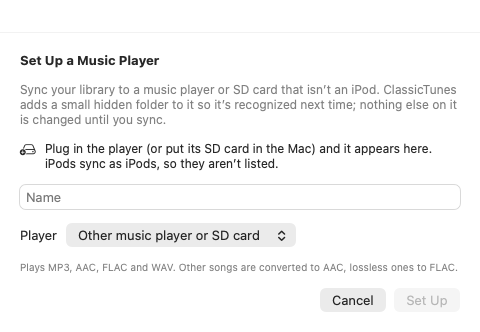
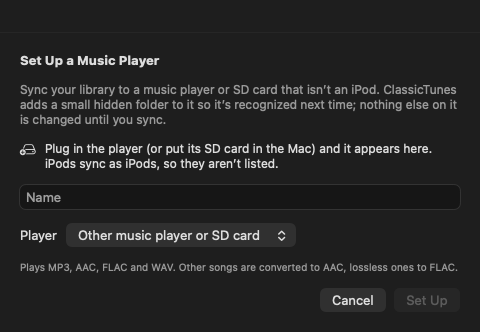
ClassicTunes adds a small hidden folder, .classictunes, to the drive, so it recognizes the player whenever you plug it in. Nothing else on the drive changes until you sync. The player then appears under Music Players in the sidebar, and its page opens.
iPods sync as iPods, so they aren't offered here. To sync an iPod that only runs Rockbox as a plain Rockbox player, use Sync as Rockbox Player… on its page instead; see iPod tools.
Rename it or change its kind
Click the pencil beside the player's name at the top of its page. In Player Settings, change the Name or the Player, and click Save. The next sync converts songs for the new kind of player where needed.
The player's page
From top to bottom:
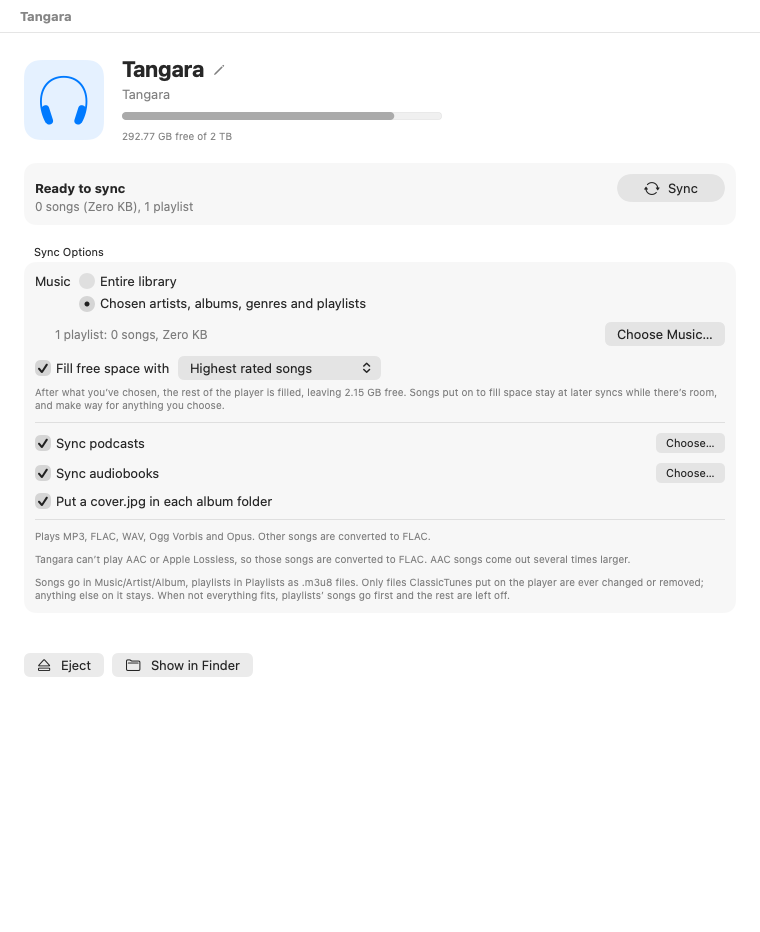
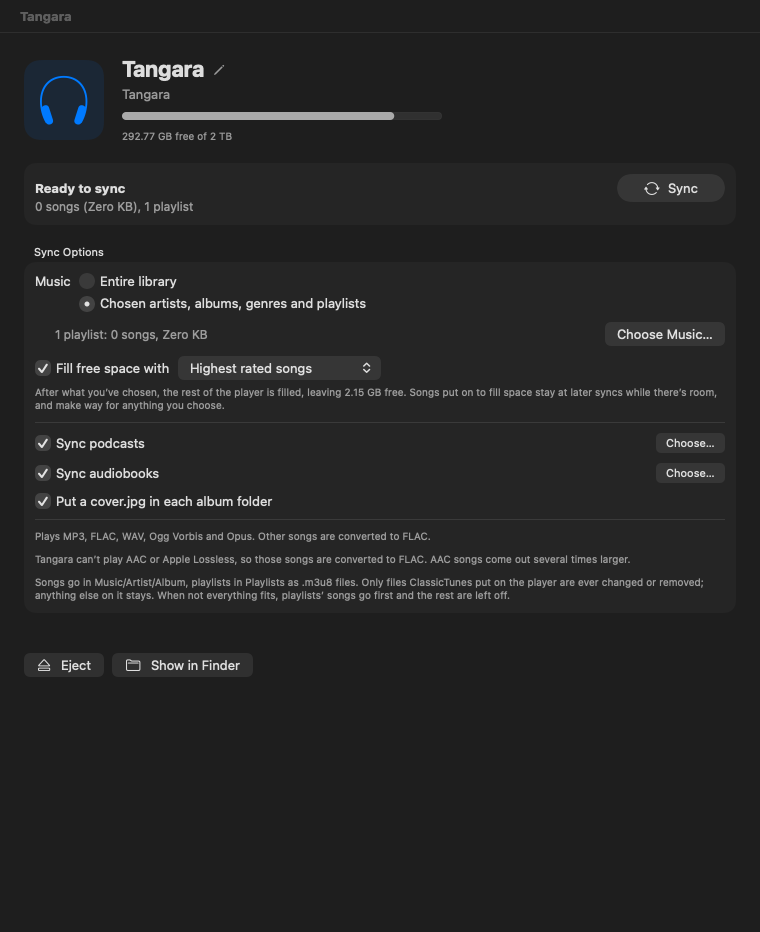
- Name and kind, with how much space is free on the drive.
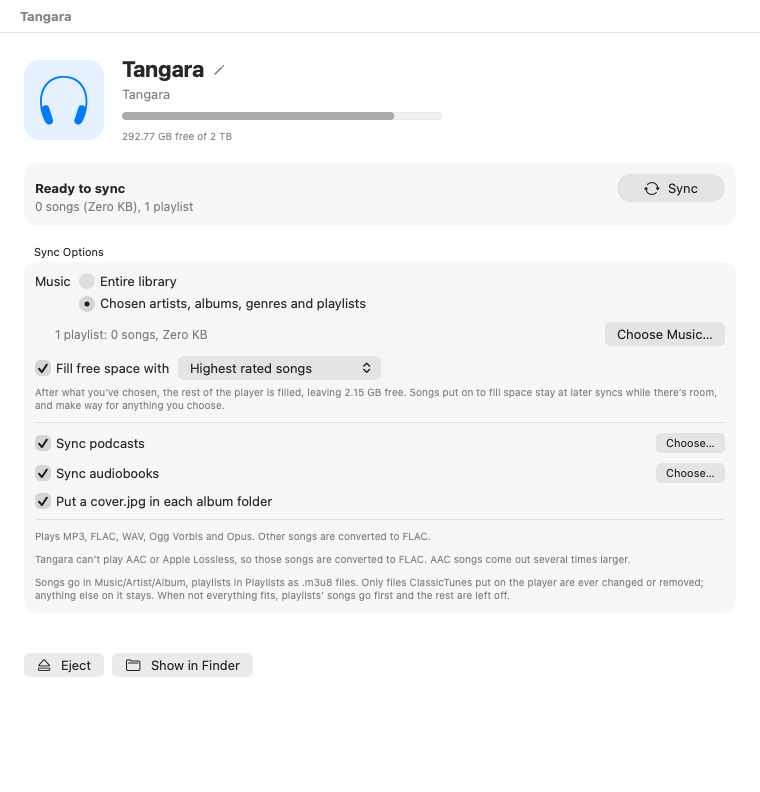
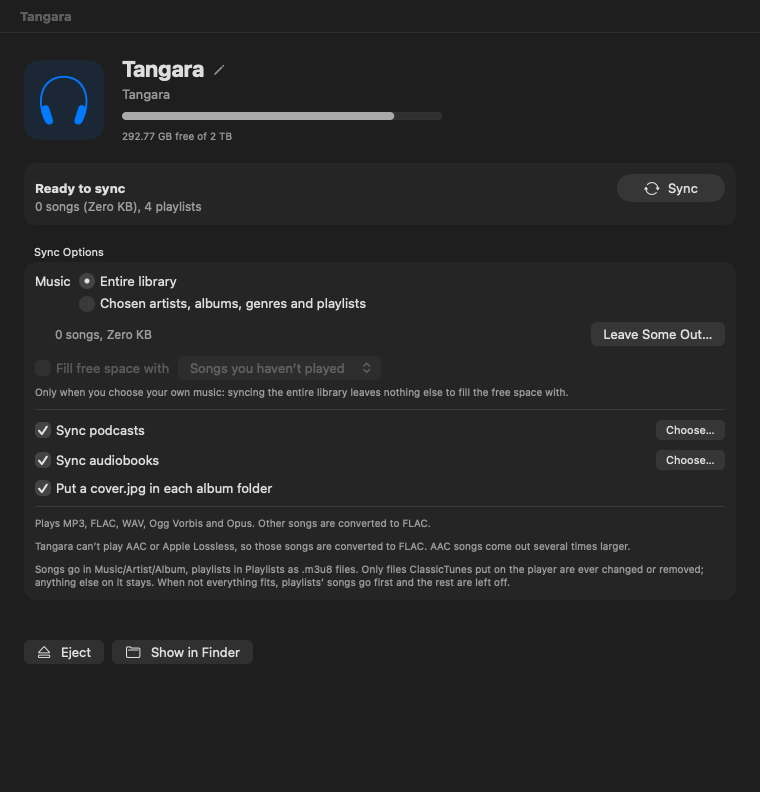
- Sync panel: what a sync will put on the player (songs, podcast episodes and playlists), with Sync. While a sync runs, it shows progress and a Cancel button. Afterward it shows what happened; Details opens the full log.
- Sync Options: what goes on this player.
- Rockbox Games: for a player set up as Rockbox, or one with Rockbox installed. See iPod tools.
- Eject and Show in Finder.
Choose what goes on it
Sync Options work as they do for an iPod (see Syncing an iPod), and each player has its own choices:
- Music: Entire library (with Leave Some Out…), or Chosen artists, albums, genres and playlists (with Choose Music…).
- Fill free space with: when you sync chosen music, tops the player up with songs you haven't played, your highest rated or most played songs, recently added songs, or random albums, leaving some space free.
- Sync podcasts, with Choose… for which shows: the episodes each show keeps, once downloaded.
- Sync audiobooks, with Choose… for which books.
- Put a cover.jpg in each album folder: on to start with. Turn it off if your player doesn't use covers.
Videos and photos aren't synced to music players.
Syncing
Click Sync on the player's page. ClassicTunes:
- Reads which files it put on the player last time.
- Works out where each song goes and whether it needs converting.
- Removes songs you've taken off.
- Copies new songs, converting them where the player can't play them. Conversions are kept on the Mac, so they're only made once.
- Writes a
cover.jpgin each album folder. - Writes the playlists.
- Tidies away folders its removals left empty.
The summary says what happened, such as how many songs were added, updated, removed, converted and left off. When ClassicTunes is in the background, a notification says when the sync is done (Settings › General › Notifications).
Cancel stops the sync. Click Eject (or the eject button beside the player in the sidebar) before unplugging it.
How files are laid out
| Folder | What's in it |
|---|---|
Music/Album Artist/Album/ | Songs, named with their track number and title (and disc number for multi-disc albums), and a cover.jpg. |
Audiobooks/Author/Title/ | Audiobooks. |
Podcasts/Show/ | Podcast episodes, named with their date and title. |
Playlists/ | One .m3u8 file per playlist, pointing at the songs with paths relative to the playlist, so any player finds them. |
Names are kept to characters that FAT32 and exFAT drives accept.
What's safe
- Only files ClassicTunes put on the player are ever changed or removed. It keeps a list of them on the drive. Anything else on the player, including your own folders, playlists and cover images, stays.
- A file ClassicTunes put there but that was changed or replaced on the player since is left alone.
- If a file of the same name that isn't ClassicTunes' is already there, it's kept, and the song is reported as failed.
- A song whose details change (a corrected title or album, for example) is moved to its new name rather than copied again.
When not everything fits
Songs from your synced playlists go on first, then the rest of your chosen music in album order, then audiobooks, until the drive is full (keeping a little space free). The songs that didn't fit are listed as left off in the sync's Details.
Plays from Rockbox
If the player runs Rockbox and keeps its play log (in Rockbox, Settings › Playback Settings › Last.fm Log), ClassicTunes adds the plays to your library's play counts at the start of each sync, each play once. With scrobbling on, they're sent to ListenBrainz too.
For a player set up as Rockbox, update Rockbox's database after syncing so it finds the songs: Settings › General Settings › Database › Initialize Now.
If something goes wrong
- "The player's drive can't be written to (it may be locked or read-only)." Check the SD card's lock switch, or the player's USB mode.
- "The list of files ClassicTunes put on this player is damaged, so nothing was changed." Set the player up again to start afresh.
Stop using a player with ClassicTunes
Delete the hidden .classictunes folder on the drive (in Finder, press ⇧⌘. to show hidden folders). The player is then no longer recognized, and the songs on it stay where they are.
Music players and libraries
Unlike iPods, a music player doesn't belong to a library: any library can sync it, and each library remembers its own choices for it. See Libraries.
From AppleScript and Shortcuts
Scripts see connected players as music players, with their name, kind, capacity, free space and sync choices, and can sync and eject them:
tell application "ClassicTunes"
    repeat with p in music players
        set syncs entire library of p to false
        set chosen playlists of p to {"Running"}
        set fill free space of p to random albums
        sync p
    end repeat
end tell
In Shortcuts (macOS 13 and later), use Sync Music Player (one player, or every connected one), and Choose Music to Sync and Set Fill Free Space with a music player chosen. See AppleScript and Shortcuts.