Your Library
Add music from files, folders and the Music app, browse it by album, artist or song, edit song details with Get Info, and remove what you don't want.
ClassicTunes keeps a library of its own: your songs, videos, podcasts, audiobooks and photos, with their details, artwork, play counts and ratings. Your iPods sync from it. It never depends on iTunes or the Music app: once something is in the library, it stays there even if you delete it from Music.
Add music
You can add music in any of these ways:
| How | Where |
|---|---|
| Choose files or folders | File › Add Music or Videos to Library… (⌘O) |
| Drag from Finder | Drop songs, videos or folders onto the Music section |
| Import from the Music app | File › Import from Music App… (⇧⌘I) |
| Import a CD | Insert it; see Importing CDs |
| Copy from an iPod | Import Media from iPod… on the iPod's page; see iPod tools |
Folders are searched all the way down, so you can add a whole music folder at once. Songs already in the library are left out, so adding the same folder twice doesn't make copies.
You can also add an .m3u or .m3u8 playlist file (it becomes a playlist, and its songs are added) or an OPML file of podcast subscriptions, the same ways. See Playlists and Podcasts.
Formats
ClassicTunes plays and syncs:
- Through macOS: FLAC, MP3, AAC, Apple Lossless, WAV, AIFF and AC3.
- Through its built-in decoder: Ogg Vorbis, Opus, WMA, Musepack, DSD (DSF and DFF), Monkey's Audio (APE), WavPack and TTA. The Mac plays these from a converted copy, made the first time each one is played.
The library keeps your original files. When a song is in a format the iPod can't play, it's converted to AAC as it's copied to the iPod, and videos are converted to a format the iPod plays. To convert songs once instead, use iPod › Find Songs iPods Can't Play…; see Tidying up your library.
Audible's copy-protected .aa and .aax audiobooks can't be played or synced, so they're skipped with a message. Audiobooks without copy protection (MP3, .m4b and so on) import normally.
The Add to Library window
When you add files or folders, the Add to Library window shows what will happen before anything is added. It works in four steps, shown along the top: Find files, Read details, Look online and Add.
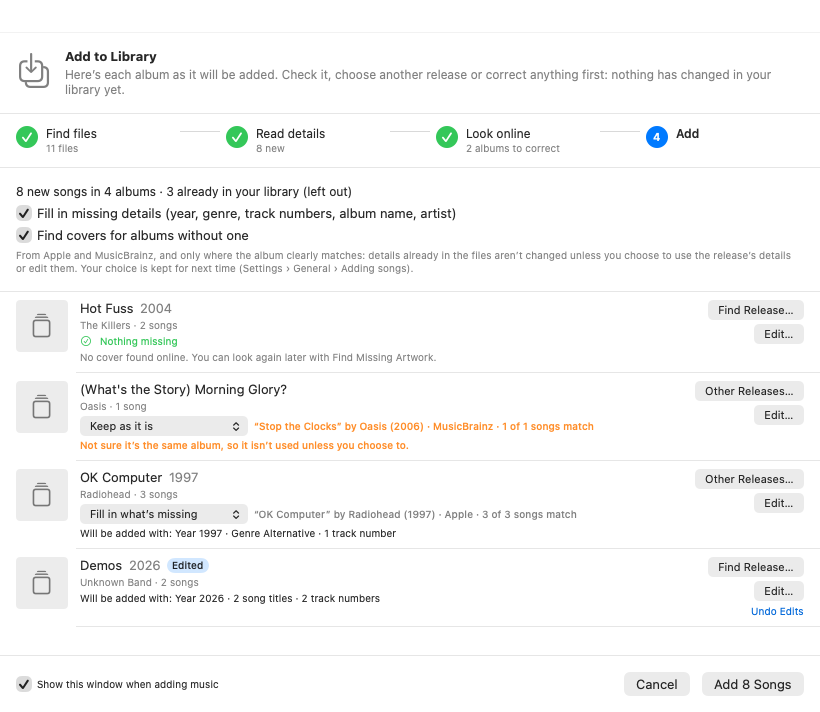
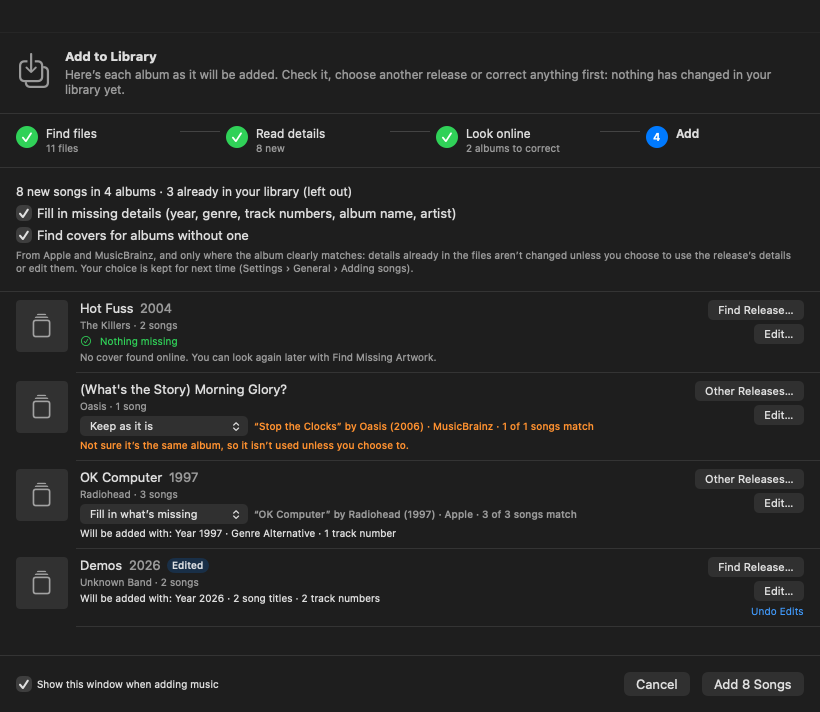
Each album is listed as it will be added, with what's missing and what will be filled in:
- Fill in missing details (year, genre, track numbers, album name, artist) and Find covers for albums without one look albums up on Apple and MusicBrainz, and only use what they find where the album clearly matches. Details already in the files aren't changed.
- When a release is found, choose how to use it: Fill in what's missing, Use the release's details, or Keep as it is. The release is shown with how many of the album's songs match it. If ClassicTunes isn't sure it's the same album, it says so and doesn't use it unless you choose to.
- Find Release… (or Other Releases…) searches again, with a corrected title or artist if you like.
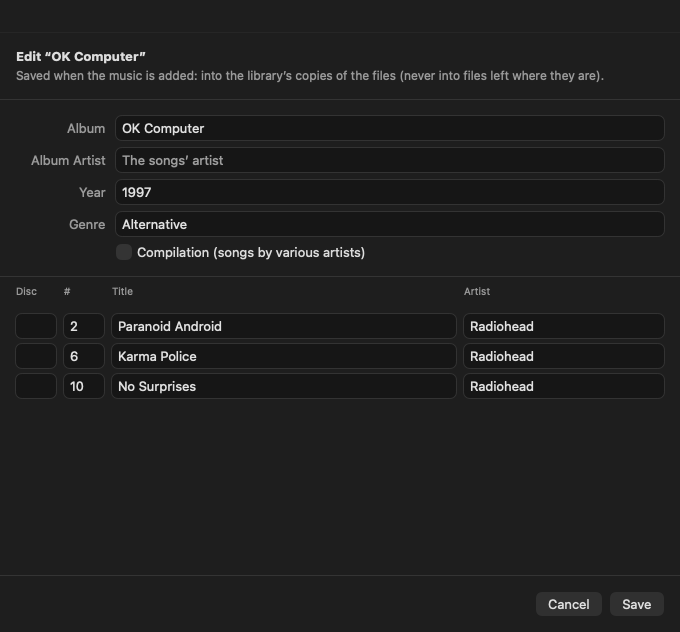
- Edit… opens the album's details: album, album artist, Compilation (songs by various artists), and each song's disc, number, title and artist. Edits are saved into the library's copies of the files when the music is added, never into files left where they are. Undo Edits puts them back.
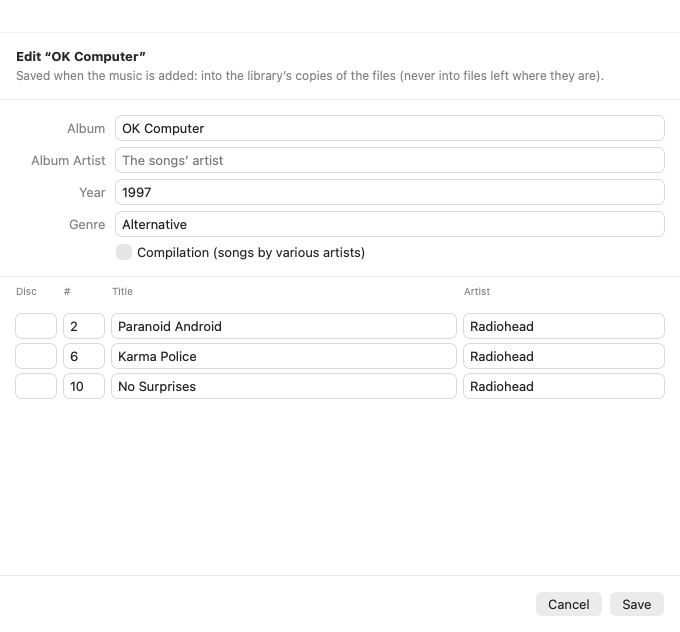
Click Add (it says how many songs or items) to add everything. While it's still looking online, Skip Looking Online stops the search and Add … Now adds straight away. Stop halts adding partway; what's already added stays.
To add music straight away without this window, turn off Show this window when adding music at the bottom of the window (or Show what will be added first in Settings › General › Adding songs). What's missing is then filled in afterward where the album clearly matches. Scripts and Shortcuts always add straight away.
Importing from the Music app
File › Import from Music App… lists every song in the Music app. The first time, macOS asks whether ClassicTunes may access your media library; if you said no, allow it in System Settings › Privacy & Security › Media & Apple Music.
The Show menu filters the list: All, Ready to Import, Already Imported, Not Downloaded and Can't Import.
- Import All … Ready imports every song that can be imported and isn't in ClassicTunes yet. Import Selected imports only the songs you've selected; selected songs that are already imported are skipped.
- Also import playlists brings your Music playlists too.
- Download in Music asks the Music app to download selected songs that live only in iCloud. They become ready to import once Music has fetched them.
- Refresh reads the Music library again.
Songs from an Apple Music subscription are copy-protected and no iPod can play them, so they can't be imported. Songs bought from the iTunes Store, ripped from CDs or added as files import normally. Imported songs keep their play counts, ratings and other details.
Imported songs are copied into ClassicTunes, so changes you make later in Music don't carry over. To pick up a change, right-click the album and choose Info › Re-read Info from Files.
Adding songs settings
These are in Settings › General › Adding songs, for each library:
| Setting | What it does |
|---|---|
| Copy files into the library when adding them | On (the default): songs and videos you add are copied into the library's Media folder, sorted by artist and album, so the library keeps working if the originals move or are deleted. Off: they stay where they are, and the library points to them there. Songs imported from the Music app are always copied. |
| Show what will be added first | Shows the Add to Library window before anything is added. |
| Fill in missing details from Apple and MusicBrainz | Fills in a missing year, genre, track or disc number, album name or artist, only where the album clearly matches. Details already in the files are never changed. |
| Albums added without a cover | Ask each time, Look online or Don't look online. See Artwork. |
Browse your library
Click Music in the sidebar to open your albums. Music opens to show three views:
- Albums (the default): a grid of album covers.
- Artists: every artist in a list, and the selected artist's albums beside it.
- Songs: every song in a table.
Search with the field in the toolbar. In Albums it finds albums, artists and songs; in Artists, artists and albums; in Songs, songs.
Albums
Click an album to open it. To play an album without opening it, hover over its cover and click the play button.
The Sort and Filter button in the toolbar changes what's shown:
- Show: All Albums, Albums with Imperfect CD Imports (albums with songs that couldn't be read completely from a CD), or Albums with Missing Songs (albums with gaps in their track or disc numbers, such as a missing track 3). With a filter on, each album says what's missing, and the button is filled in.
- Sort Albums By: Recently Added, Year Released (Newest First), Year Released (Oldest First), Alphabetical, or Alphabetical + Year Released. Sorting by year groups albums by decade.
Selecting several albums
- ⌘-click albums to select them one by one, or ⇧-click to select a range.
- Drag a box in an empty part of the grid to select every album it touches (hold ⌘ or ⇧ to add to the selection).
- ⌘A selects every album shown.
A bar appears at the bottom with Play, Shuffle, Add to Playlist, Merge… (with more than one album), Look Up… and Remove…. Done or Esc clears the selection. Right-clicking a selected album acts on the whole selection, ⌘I opens Get Info for all its songs, and Delete removes them (after asking).
An album's page
An album's page shows its cover, title, artist, genre, number of songs and length, the audio format (such as AAC 256 kbps, Lossless or Hi-Res Lossless), and when its files were created on this Mac (usually when they were ripped or downloaded).
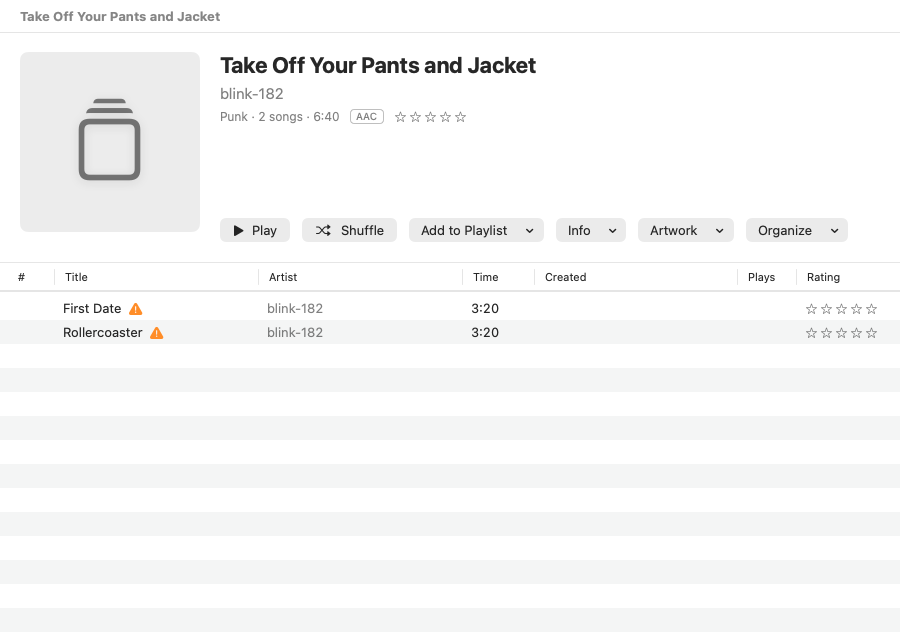
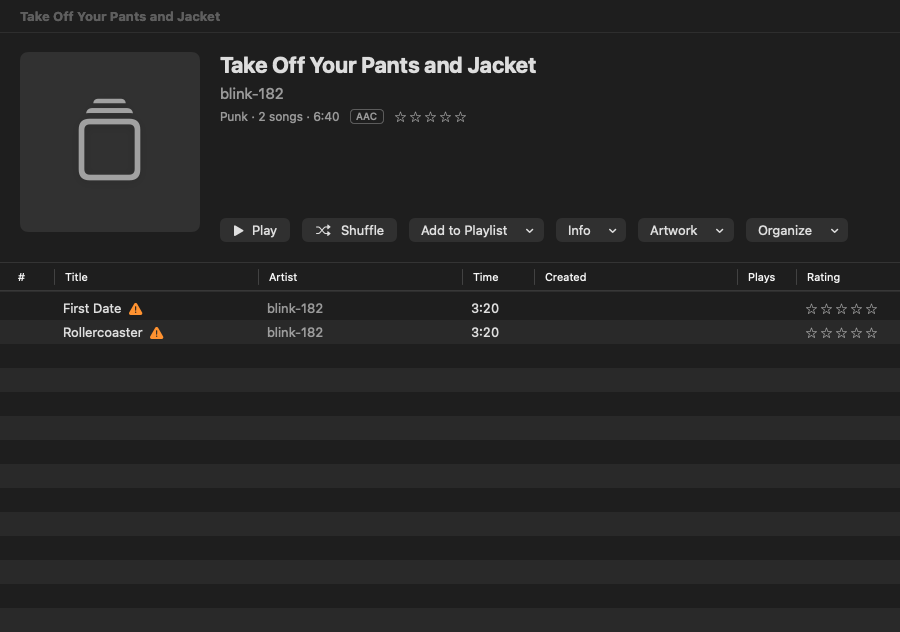
- Click the cover to see it larger. Drop an image on it to use as the album's artwork.
- Click the stars to rate every song on the album. They show the average of its rated songs.
- Play and Shuffle play the album; Add to Playlist adds it to a playlist or makes a new one.
- Info, Artwork and Organize hold the album's tools: see Get Info, Artwork and Tidying up your library.
- Double-click a song to play from it. Select songs and right-click for more.
- An album on more than one disc is shown disc by disc.
A song whose file can't be found shows an orange warning triangle.
Click Albums in the toolbar (or press ⌘[ or Esc) to go back to the grid.
Artists
Select an artist to see their albums, newest first, and under Appears On, other albums they have songs on, such as compilations. Play and Shuffle play everything by them. Right-click an artist in the list to play or shuffle them.
Songs
The Songs table lists every song, with Title, Artist, Album, Time, Genre, Format, Plays, Rating and Size. Click a column heading to sort by it. Explicit songs show an E after their title.
Double-click a song to play from it through the rest of the list.
The right-click menu
Right-click an album, a selection of albums, or songs, for:
- Play, Shuffle (albums), Play Next and Add to Up Next.
- Info: Get Info, Look Up and Replace Info… (albums) and Re-read Info from Files.
- Artwork: Choose Artwork…, Search for Artwork Online…, Find Better Artwork… (an album with a cover) and Re-read Artwork from Files. See Artwork.
- Organize: Merge Another Album into This… or Merge … Albums…, Label Discs…, Move to Album… (in the Songs list), and Mark as Audiobook. See Tidying up your library.
- Add to Playlist: an existing playlist, or a new one with these songs.
- Rating: None to five stars.
- Sync to iPod and Don't Sync: Don't Sync leaves the songs off every iPod and music player that syncs this library; Sync to iPod puts them back. Each iPod's own choices are on its page; see Syncing.
- Show in Finder.
- Remove from Library….
Mark as Audiobook moves songs to Audiobooks: they keep their place, skip shuffle and go to the iPod's Audiobooks menu. See Audiobooks.
Edit song details with Get Info
Select one or more songs or albums and choose File › Get Info (⌘I), or right-click and choose Info › Get Info. On an album's page, it's in the Info menu.
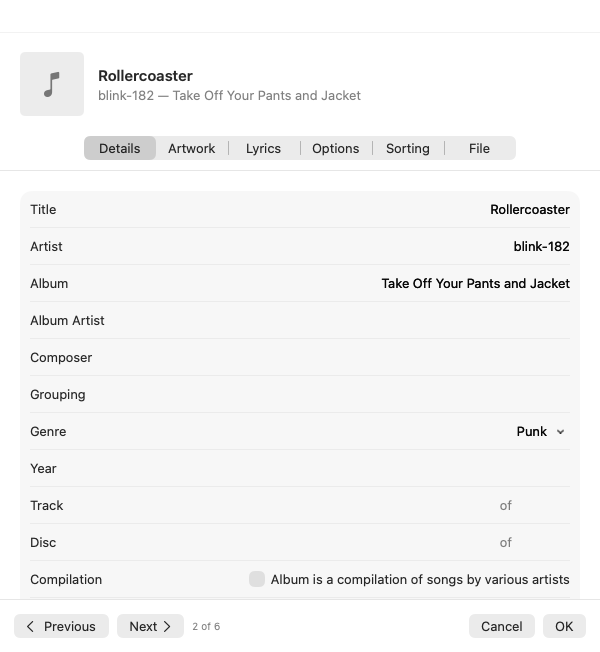
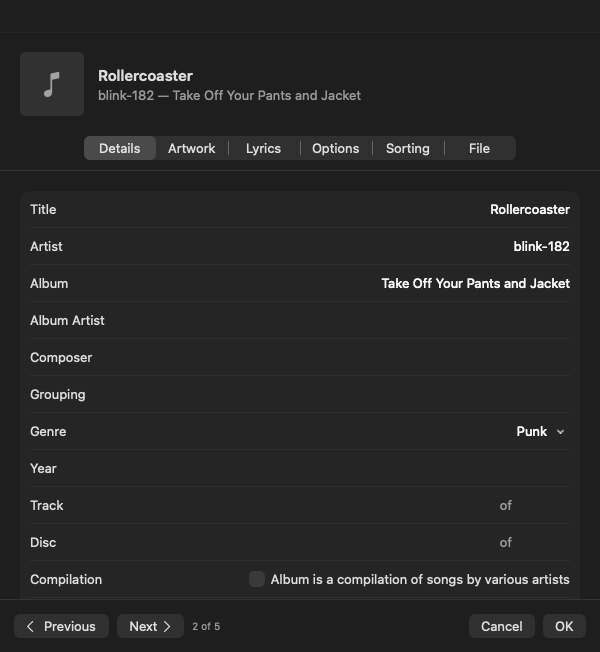
The window has these tabs:
| Tab | What's in it |
|---|---|
| Details | Title, Artist, Album, Album Artist, Composer, Grouping, Genre (type one, or choose one already in the library), Year, Track (… of …), Disc (… of …), Album is a compilation of songs by various artists, Explicit lyrics, Rating, BPM, Plays (with Reset) and Comments. |
| Artwork | The song's cover. Add Artwork… chooses an image, Remove Artwork takes it off, or drag an image onto the artwork. |
| Lyrics | The song's lyrics, saved in the music file. iPod classic shows them in Now Playing (press the center button until they appear). |
| Options | Start and Stop times (minutes:seconds), Volume Adjust (−100% to +100%), an Equalizer preset used while it plays, and Remember playback position, Skip when shuffling and Part of a gapless album. |
| Sorting | "Sort as" names for the title, artist, album, album artist and composer. These change where a song appears in sorted lists on the iPod and in ClassicTunes, without changing how it's shown. A leading "The" is already ignored for artists. |
| File | Kind, Duration, Size, Bit Rate, Sample Rate, Date Modified, Date Added, Created, Source (added as a file, imported from Music, or imported from a CD), the CD checks for imported CDs, whether edits are written into the file, and its Location, with Show in Finder. |
Click OK to save, or Cancel to leave everything as it was.
- Previous and Next (⌘[ and ⌘]) save and move to the song before or after in the list, so you can work down an album.
- With several songs selected, the window has Details, Artwork, Options and Sorting. Fields where the songs differ say Mixed; only the fields you change are applied.
- A video's Details tab has its own fields (kind, show, season and episode, director and description). See Videos.
Where edits are saved
Details you edit are written into the music files themselves (MP3, AAC, Apple Lossless and FLAC), so they go with the files to other apps. WAV, AIFF and some other formats can't hold tags; their edits are saved in ClassicTunes only, and it tells you so. The File tab says which applies.
The Options tab's settings are saved in ClassicTunes and on the iPod, because music files have no place for them.
Changes reach your iPods at their next sync.
Explicit songs
Explicit songs show an E after their title in song lists, Now Playing and Up Next, as in Apple Music.
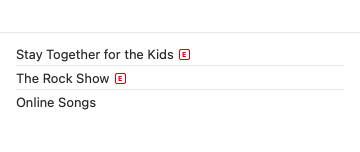
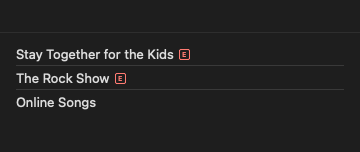
The mark comes from the files, the Music app, an iPod, or Look Up and Replace Info (from Apple). You can set it in Get Info with Explicit lyrics. It's written into AAC and Apple Lossless files, synced to iPods, and you can use it in a smart playlist rule.
Re-read info from files
If you've changed a song's tags in another app, right-click it and choose Info › Re-read Info from Files to read its details again. Songs imported from the Music app are read again from Music.
To re-read everything, choose Tools › Re-read Info for All Music…. Edits made in ClassicTunes are kept: they were written into the files, or, for files that can't hold them, they stay as they are. A backup of your current info is saved first; see Metadata backups.
To read artwork again at the same time, turn on Settings › General › Info › Also re-read artwork when re-reading info.
Remove songs
Select songs or albums and choose Remove from Library… from the right-click menu (or press Delete in the album grid). ClassicTunes asks what to do with the files:
- Move to Trash removes the songs and puts their files in the Trash, where you can put them back until you empty it. A file that another song in the library still uses is kept.
- Keep Files removes the songs from ClassicTunes only, and leaves the files where they are.
If the files are already gone, there's just Remove from Library. If any of the files are outside ClassicTunes' library folder, the message says so, so you can check no other app uses them.
Removed songs leave their playlists, and come off your iPods at their next sync. When files go to the Trash, artist and album folders they leave empty in the library's Media folder are removed too.
Where the library is kept
The library lives in a folder on your Mac: ~/Library/Application Support/ClassicTunes unless you've chosen another place. It holds the library's list of songs, the songs copied into it (in Media, sorted by artist and album), artwork, podcast downloads, converted files and backups.
To move it, for example to an external drive, use Settings › General › Library › Location. To keep separate libraries for different iPods or people, see Several libraries.
From AppleScript and Shortcuts
Scripts can see every song in the library and edit its details; edits are written into the files, as with Get Info. import adds files or folders, and selection is the songs selected in the window.
set musicFolder to choose folder
tell application "ClassicTunes"
    with timeout of 600 seconds
        import musicFolder with filling in missing details
    end timeout
    set genre of (every track whose artist is "Radiohead") to "Alternative"
    repeat with t in selection
        set rating of t to 80
    end repeat
    log (count of tracks) & " items in " & library name
end tell
In Shortcuts (macOS 13 and later), Add to ClassicTunes adds files or folders, with Fill In Missing Details to look them up online. Tracks can be chosen or searched in any action that takes them. See AppleScript and Shortcuts.