Podcasts
Subscribe to podcasts by searching or pasting a feed, download and play episodes, sync them to an iPod, and import or export OPML.
ClassicTunes subscribes to podcasts, checks for new episodes while it's open, downloads the ones you keep, and syncs them to your iPod's Podcasts menu with unplayed dots and the place you'd got to.
Subscribe to a podcast
- Choose File › Add Podcast… (⇧⌘P), or click Add Podcast in the Podcasts toolbar.
- Type the podcast's name and click Search to search Apple Podcasts, then click Subscribe beside the one you want. Podcasts you already have say "Subscribed".
- Or paste the podcast's feed address (starting with
https://,http://orfeed://) and click Subscribe.
Click Done when you've finished. The show appears in Podcasts in the sidebar, with its episodes.
Note: Feeds must be web addresses. An http feed is fetched over a secure https connection, so a feed that only works over plain http can't be added.
Browse your podcasts
Podcasts shows your shows as a Grid of artwork or as a List; switch with the buttons in the toolbar.
- In the grid, click a show to open its page, and use Sort in the toolbar to order shows by Latest Episode, Recently Subscribed or Alphabetical. A Podcasts back button (or Esc) returns to the grid.
- In the list, shows are on the left, with how many episodes each has and how many are downloaded; the selected show's page is on the right.
The toolbar also has:
| Button | What it does |
|---|---|
| Add Podcast | Opens the Add Podcast window. |
| Refresh | Checks every show for new episodes now (also File › Refresh Podcasts, ⌘R). |
| Download New Episodes | Downloads the episodes that will sync to the iPod but aren't downloaded yet. |
Right-click a show (in the grid or the list) for Refresh and Unsubscribe.
A show's page
The top of a show's page has its artwork, title, author, description, and when it was last updated.
- Keep sets how many episodes the show keeps for your iPods: latest episode, latest 3, latest 5, latest 10, latest 25 or all episodes.
- Refresh checks this show for new episodes.
- Unsubscribe removes the show. Its downloaded episodes are deleted from your Mac, and episodes already on the iPod are removed at the next sync.
Episodes
Each episode shows a blue dot while it's unplayed, its title, date, length and size, and two labels:
- Downloaded: the episode is on your Mac.
- Syncs: the episode will go to the iPod (it's one of the show's kept episodes, or set to always sync).
Double-click an episode to show or hide its description.
The buttons at the right of each episode:
- The play button plays it. An episode that isn't downloaded streams from the internet.
- The download button downloads it; while it downloads, a progress bar and a cancel button take its place.
- The trash button deletes the download (the episode stays listed, so you can download it again).
Right-click an episode
| Command | What it does |
|---|---|
| Play or Resume | Plays the episode (from where you stopped, if you've started it), then the newer episodes after it, the order you'd catch up in. |
| Play Next / Add to Up Next | Adds it to Up Next. |
| Show Description / Hide Description | Shows or hides the episode's notes. |
| Download, Cancel Download or Delete Download | |
| Sync › Follow the Show's Setting | The episode syncs if it's one of the show's kept episodes. |
| Sync › Always Sync This Episode | The episode always goes to the iPod, whatever Keep says. |
| Sync › Never Sync This Episode | The episode never goes to the iPod. |
| Mark as Played / Mark as Unplayed |
ClassicTunes remembers where you stopped in each episode. An episode played to the end is marked as played.
Checking for new episodes
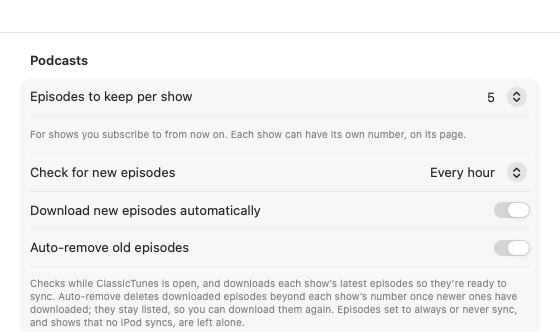
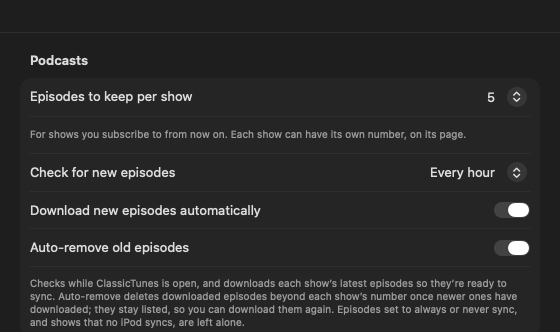
Podcast settings are in Settings › General › Podcasts:
| Setting | What it does |
|---|---|
| Episodes to keep per show | The Keep number for shows you subscribe to from now on: 1 (the latest), 3, 5, 10 or All. Each show can have its own number on its page. |
| Check for new episodes | Every hour (the default), Every 6 hours, Every day, Every week or Manually. |
| Download new episodes automatically | After each check, downloads each show's kept episodes so they're ready to sync. |
| Auto-remove old episodes | Deletes downloaded episodes beyond each show's number once newer ones have downloaded. They stay listed, so you can download them again. |
Checks happen only while ClassicTunes is open, and not during a sync. Episodes set to always or never sync, and shows that no iPod syncs, are left alone by automatic downloads and removal.
With Settings › General › Notifications turned on, ClassicTunes tells you when new episodes download while it's in the background.
Podcasts on the iPod
Each iPod chooses its own podcasts in its Sync Options:
- Sync podcasts turns podcasts on or off for this iPod.
- Choose… lists your shows with the space each one's episodes take; untick the ones to leave off this iPod. Check All and Uncheck All help.
At each sync, each show's kept episodes (plus any set to always sync) go to the iPod's Podcasts menu, under the show, with unplayed dots and the place you'd got to. A sync downloads any it still needs. What you listen to on the iPod comes back at the next sync: episodes you finished are marked as played, and your place in the others is kept.
Some older iPods have no Podcasts menu; for those, Sync podcasts is turned off with a note saying so. See Syncing.
Import and export subscriptions
Podcast apps share their subscriptions as OPML files.
- File › Library › Import Podcast Subscriptions… subscribes to every podcast in an OPML file that you aren't already subscribed to. Dropping an OPML file on your library does the same.
- File › Library › Export Podcast Subscriptions… saves your subscriptions as an OPML file that other podcast apps can import.
Podcasts on an iPod can also come into your library with Import Media from iPod…, as subscribed shows with their episodes. See iPod tools.
From AppleScript and Shortcuts
tell application "ClassicTunes"
    with timeout of 600 seconds
        set found to check for new episodes with downloading
    end with timeout
    log (found as text) & " new episodes"
    export podcasts to (POSIX file "/Users/Shared/Podcasts.opml")
end tell
check for new episodes checks every show and, unless you say without downloading, downloads the episodes each show keeps. import with an OPML file subscribes to its podcasts. See AppleScript.
In Shortcuts (macOS 13 and later), use Check for New Podcast Episodes, Import Podcast Subscriptions and Export Podcast Subscriptions. See Shortcuts.