Videos
Add movies, TV shows, music videos and home videos, play them on your Mac, set each one's kind, and sync them to an iPod in a format it plays.
Videos, in the sidebar's library section, holds your movies, TV episodes, music videos and home videos. ClassicTunes plays them on your Mac and converts them for the iPod when it syncs.
Adding videos
Choose File › Add Music or Videos to Library… (⌘O), click Add Videos… when Videos is empty, or drag video files onto the Videos page. ClassicTunes takes MP4, M4V, MOV and MKV files, and also MPEG, AVI, 3GP, MPEG-TS, WebM, FLV, WMV and MXF. Like songs, videos are copied into your library's folder (unless Settings › General › Adding songs leaves files where they are).
When a video is added, ClassicTunes:
- gives it a name: its own title, or its file name. A file name from a release ("Some.Film.2019.1080p.BluRay.x264") is tidied to "Some Film", with the year filled in.
- recognizes TV episodes from names such as "Show.Name.S02E05" or "Show.Name.2x05" and sets the show, season and episode.
- picks a picture for it: a frame from a little way in that isn't nearly black, since films and clips often open on black.
Browsing videos
Switch between Grid and List with the buttons in the toolbar, and search by title, artist or album with the search field.
- Grid shows each video's picture with its length. Use Sort to order them by Recently Added or Alphabetical.
- List has these columns:
| Column | Shows |
|---|---|
| Title | The video's title. A warning triangle means its file can't be found. |
| Time | Its length. |
| Source | Its picture size and file type, such as 1920×1080 MP4. |
| On iPod | The size it's converted to for the iPod, such as 320×180 H.264. |
| Size | The file's size. |
Click a list heading to sort by it; the sort is remembered for each library.
Playing videos
Click a video in the grid, or double-click it in the list, to play it. It opens in its own Video window, which you can resize or make full screen. The player controls in the main window's toolbar work as they do for music. Closing the Video window pauses the video.
Videos in formats macOS can't play itself (such as MKV and WebM) are converted to a copy the first time you play them; "Preparing to play…" shows how far it's got.
Right-click a video
- In the grid: Play, Get Info, Show in Finder and Remove from Library….
- In the list (on one or several videos): Play, Sync to iPod, Don't Sync, Show in Finder and Remove from Library….
What kind of video it is
The kind of video decides where it goes in the iPod's Videos menu. Select a video and choose File › Get Info (⌘I) to set it:
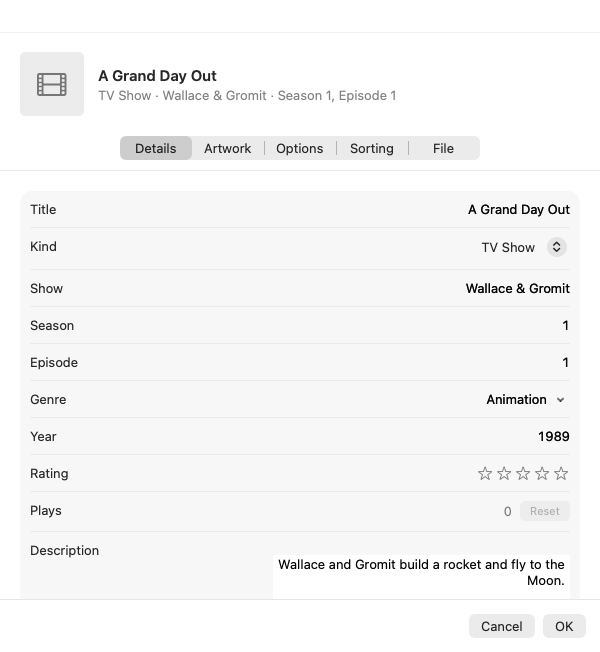
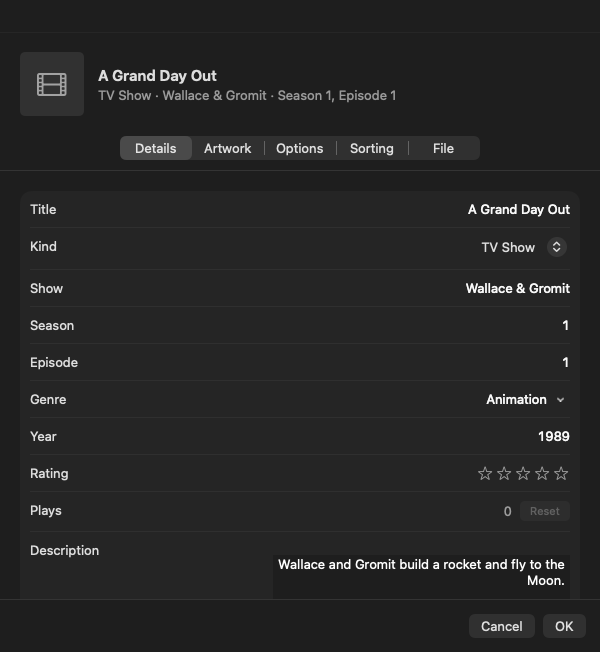
| Kind | Details you can set |
|---|---|
| Movie | Director |
| TV Show | Show, Season and Episode |
| Music Video | Artist and Album |
| Home Video | Director |
Every kind also has a title, Genre, Year and Rating. Select several videos to set their kind (and shared details) together.
Music videos count as music for scrobbling; other videos aren't sent.
Videos on the iPod
iPods that play video (the iPod with video, the iPod classic, and the iPod nano 3rd generation and later) get videos converted to H.264 at up to 320×240, the size their screens show, keeping each video's shape. A tall video, such as one filmed on a phone held upright, is framed with black either side so the iPod has nothing to crop.
Conversion happens during the sync, and long videos take a while; the sync shows "Converting video" with how far it's got and, once it can tell, about how long is left. Each converted copy is kept on your Mac, so later syncs (and other iPods) don't convert it again unless the video changes. Your original file stays as it is, for playing on the Mac.
Each iPod chooses its own videos in its Sync Options: Sync videos turns videos on or off for this iPod, and Choose… lists your videos with their sizes so you can untick ones to leave off. See Syncing.
iPods without a video screen (the iPod mini, the iPod photo, the iPod nano 1st and 2nd generation, and earlier iPods) don't get videos. Preview Sync lists them under Left Off, with the reason.
Videos from the Photos app
Videos in the Photos library can go to the iPod too, along with the photos you choose for it. See Photos.
From AppleScript and Shortcuts
Videos are tracks whose media kind is video. Scripts can read and set their video kind (movie, TV show, music video or home video), show, season number and episode number:
tell application "ClassicTunes"
    repeat with v in (every track whose media kind is video and name contains "Gardeners")
        set video kind of v to TV show
        set show of v to "Gardeners' World"
        set season number of v to 1
    end repeat
end tell
See AppleScript. In Shortcuts (macOS 13 and later), use Set Video Details, and Play Tracks to play a video. See Shortcuts.