Settings
Every tab and setting in ClassicTunes' Settings window, what each one does, and which ones belong to each library.
To open Settings, choose ClassicTunes › Settings… (⌘,). On macOS 12 Monterey the menu item is called Preferences….
The window has five tabs: General, Advanced, Backups, Scrobbling and Libraries.
Settings and libraries
Most settings belong to the library that's open, so each library can be set up differently. When you have more than one library, the top of the General tab says which library you're changing: "These settings are for the library…".
These settings are the same for every library on your Mac:
- Open ClassicTunes when an iPod is connected
- Under Play key: Open ClassicTunes when the Play key would open Music, When it starts and Always open ClassicTunes instead of the Music app (what plays is set for each library)
- Other players
- Notifications
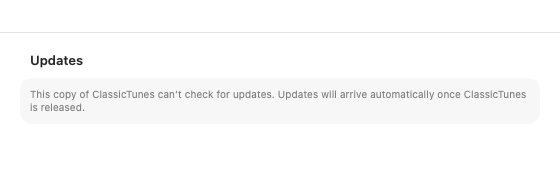
- Updates
- Everything on the Backups, Scrobbling and Libraries tabs
General
Appearance
| Setting | What it does |
|---|---|
| Appearance | Auto, Light or Dark. Auto follows your Mac's light or dark setting. Changes straight away. |
| Highlight color | The color of selections and highlights in ClassicTunes. Automatic matches this library's iPod: a pink iPod makes ClassicTunes pink. Silver, white and black iPods use macOS's accent color. You can also pick macOS Accent Color, Blue, Purple, Pink, Red, Orange, Yellow, Green or Graphite. |
You can change an iPod's color on its page (see Connecting an iPod). A new highlight color appears after ClassicTunes restarts; click Restart Now to restart straight away.
Syncing
| Setting | What it does |
|---|---|
| Open ClassicTunes when an iPod is connected | Opens ClassicTunes by itself whenever you plug in an iPod, even when it isn't running. The first time, open ClassicTunes with the iPod connected and click Allow when macOS asks to access removable volumes. |
| Eject the iPod when a sync finishes | Ejects each iPod as soon as its sync is done. Also in each iPod's Sync Options; it's the same setting for every iPod in the library. |
| Sync album artwork | Puts album covers on the iPod, converted to the iPod's own thumbnail sizes during each sync. On unless you turn it off. |
See Connecting an iPod and Syncing.
Adding songs
| Setting | What it does |
|---|---|
| Copy files into the library when adding them | On (the default): songs and videos you add (with Add Music or Videos to Library…, by dragging them in, or from scripts) are copied into the library's Media folder, sorted by artist and album, so the library keeps working if the originals move or are deleted. Off: they stay where they are and the library points to them there; if you move or delete the originals, the library can't play them. |
| Show what will be added first | On (the default): before anything is added, a window shows each step (finding the files, reading them, looking online for what's missing) and what will be added and filled in. Off: music is added straight away, and what's missing is filled in afterward where the album clearly matches. Scripts and Shortcuts always add straight away. |
| Fill in missing details from Apple and MusicBrainz | A missing year, genre, track or disc number, album name or artist is filled in from Apple or MusicBrainz, only where the album clearly matches (most of its songs, by the same artist). Details already in the files are never changed; to replace them, use Tools › Look Up and Replace Info…. On unless you turn it off. |
| Albums added without a cover | Ask each time (the default), Look online or Don't look online. A cover inside the files is used first, then one in their folder (cover.jpg, folder.jpg…). For albums still without one, ClassicTunes can search Apple and MusicBrainz and add the cover where the artist and album clearly match. |
See Your library and Artwork.
Importing CDs
| Setting | What it does |
|---|---|
| When a CD is inserted | Show the CD (the default), Import the CD, or Import the CD and eject it. |
| Import using | The starting format for each CD: AAC, 256 kbps (high quality) (the default, about 115 MB an hour), AAC, 128 kbps (smaller) (about 58 MB an hour) or Apple Lossless (CD quality) (about 300 MB an hour). You can change it for each CD on its page. |
| Read offset | Each CD drive's read offset is found automatically the first time you import a disc that's in AccurateRip, so imports can be checked against other people's rips. Once found, each drive is listed with its offset and a Forget button; a forgotten offset is found again the next time you import a disc that's in AccurateRip. |
Imported songs are saved in the library folder. To stop the Music app opening CDs, set "When you insert a music CD" to Ignore in System Settings › CDs & DVDs. See CDs.
Playback
| Setting | What it does |
|---|---|
| Sound Check | Plays songs at the same perceived volume. Songs are analyzed once in the background (the caption shows progress while that happens). The values also go to the iPod, which uses them when its own Sound Check setting (Settings › Playback on the iPod) is on. Off unless you turn it on. |
See Playback.
Play key
The Play key on your keyboard (and the play button on headphones or AirPods) normally opens the Music app when nothing is playing. These settings send it to ClassicTunes instead.
| Setting | What it does |
|---|---|
| Open ClassicTunes when the Play key would open Music | Turns this on. Off unless you turn it on. |
| Play | What starts playing: Carry on where I left off (the default), Shuffle all songs, A playlist, Recently added or My current audiobook. Set for each library. If there's nothing to carry on with, it shuffles all songs. |
| Playlist | Shown when Play is A playlist: which playlist. |
| Shuffle | Shown when Play is A playlist or Recently added: plays them shuffled. |
| When it starts | Open the window (the default) or Play in the background. |
| Always open ClassicTunes instead of the Music app | Quits Music whenever it opens, even from the Dock, and opens ClassicTunes instead. |
The key only comes to ClassicTunes when no other player has it: if another app was playing, the key still goes to that app. A small helper runs in the background to notice when the key would open Music.
Other players
| Setting | What it does |
|---|---|
| When ClassicTunes plays, pause other players | Pauses Music, Spotify, TV, QuickTime Player and VLC if they're playing. macOS asks once whether ClassicTunes may control each. Sound in a web browser can't be paused this way. On unless you turn it off. |
Whether this is on or off, ClassicTunes pauses when AirPods or headphones are taken out, and carries on when the same ones are back.
Notifications
| Setting | What it does |
|---|---|
| Show notifications when syncs, snapshots, restores and imports finish, and when new podcast episodes download | On unless you turn it off. Notifications are shown only while ClassicTunes is in the background, for jobs that finish or fail. Clicking one opens the iPod or CD it's about. |
If notifications for ClassicTunes are turned off in System Settings, the section says so, with an Open Notifications button.
Updates
| Setting | What it does |
|---|---|
| Check for updates automatically | Checks for a new version once a day. |
| Download and install updates automatically | Downloads new versions without asking, and installs them the next time ClassicTunes quits. Only available while automatic checks are on. |
| Check Now | Checks straight away. Beside it, "Last checked…" says when ClassicTunes last checked. |
An update never restarts ClassicTunes while it's syncing, taking a snapshot or importing. See Updates.
Info
| Setting | What it does |
|---|---|
| Also re-read artwork when re-reading info | Applies to Re-read Info from Files, Re-read Info for All Music, and the starting choice in Look Up and Replace Info. |
| Find Missing Artwork… | Checks your files and the Music app again, then searches Apple and MusicBrainz for covers you can pick, or lets you choose an image of your own. Also in the Tools menu. |
See Tidying up and Artwork.
Backup
These buttons back up your library's information (not the music files themselves).
| Button | What it does |
|---|---|
| Export Info… | Saves every song's details, sync choices, play counts, ratings, date added and artwork to a file. |
| Restore from Backup… | Opens a backup and lets you choose what to restore: song details, play counts, last played and ratings, artwork, and date added. |
| Show Automatic Backups | Shows the folder of backups made automatically before Re-read Info for All Music and before restoring. The last 10 are kept. |
See Metadata backups.
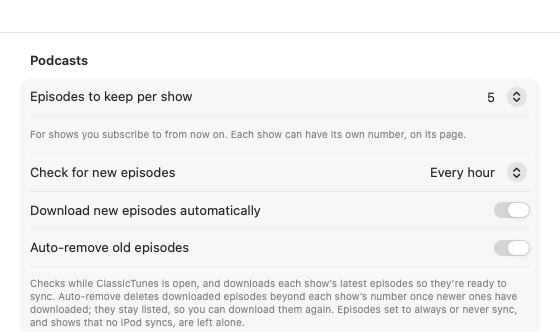
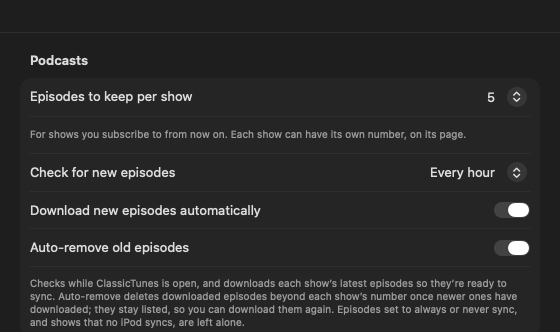
Podcasts
| Setting | What it does |
|---|---|
| Episodes to keep per show | 1 (the latest), 3, 5 (the default), 10 or All. For shows you subscribe to from now on; each show can have its own number, on its page. |
| Check for new episodes | Every hour (the default), Every 6 hours, Every day, Every week or Manually. Checks happen while ClassicTunes is open. |
| Download new episodes automatically | Downloads each show's latest episodes so they're ready to sync. On unless you turn it off. |
| Auto-remove old episodes | Deletes downloaded episodes beyond each show's number once newer ones have downloaded. They stay listed, so you can download them again. On unless you turn it off. |
Episodes set to always or never sync, and shows that no iPod syncs, are left alone. See Podcasts.
Library
| Setting | What it does |
|---|---|
| Location | Where the library's folder is. Show opens it in Finder. Change… moves the library into a folder called "ClassicTunes" inside the folder you choose. |
| Move Back to Default Location… | Shown when the library isn't in its default place. |
The library folder holds songs imported from Music, songs added as files while Copy files into the library when adding them is on, artwork, podcast downloads, converted files and backups. Moving it copies everything and checks the copy before switching; the old folder then goes to the Trash, and you're asked to restart ClassicTunes. If the folder you choose already has a ClassicTunes library, ClassicTunes offers to switch to it instead. See Libraries.
Advanced
Simulated iPod
For testing without hardware, a folder with an iPod_Control directory can stand in for an iPod. ClassicTunes writes a real database into it.
- Create Test iPod Folder… makes a new test iPod folder and attaches it.
- Attach Existing Folder… attaches a folder that already has an iPod_Control directory.
- Each attached folder is listed with a Detach button.
Remembered iPods
Every iPod this library remembers syncing, with how many songs and episodes it last synced and when. Forget… makes ClassicTunes forget what it synced to that iPod and its sync settings, and releases it from this library, so connecting it again asks which library to use. Nothing on the iPod changes, but the next sync copies every song again. See Connecting an iPod.
Backups
Settings for snapshots, copies of a whole iPod you can put back later.
iPod snapshots
| Setting | What it does |
|---|---|
| Offer a snapshot before ClassicTunes first syncs an iPod | On unless you turn it off. |
| Offer a snapshot before a sync that removes a lot | A sync that removes at least 100 songs, or a quarter of the songs on the iPod. On unless you turn it off. |
| Remind me to take a new snapshot | Never, After a week or After a month (the default). |
| Keep the newest … "before a large sync" snapshots | From 1 to 50 (5 by default). Other snapshots are kept until you delete them. |
Snapshots are never taken without asking; Take Snapshot on an iPod's page saves one any time.
Where snapshots are kept
The folder snapshots are saved in, at first "ClassicTunes iPod Backups" in your Library's Application Support folder. Change… picks another folder; Use Default goes back. Each snapshot only stores what changed since the last one; the rest is shared. An APFS drive keeps them smallest. Snapshots already taken stay where they are.
Scrobbling
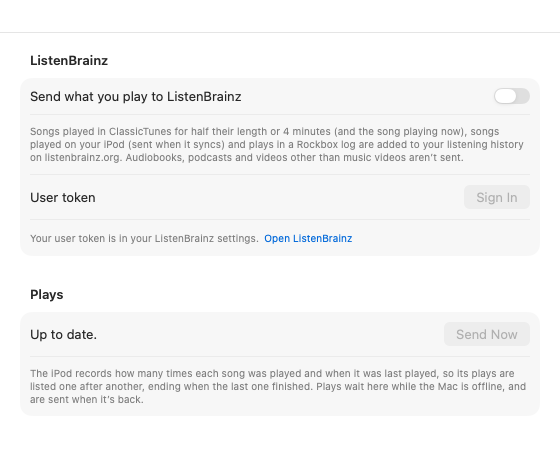
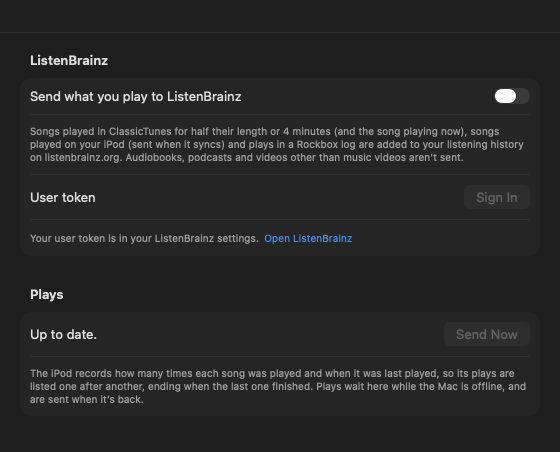
ListenBrainz
| Setting | What it does |
|---|---|
| Send what you play to ListenBrainz | Adds what you play to your listening history on listenbrainz.org: songs played in ClassicTunes for half their length or 4 minutes (and the song playing now), songs played on your iPod (sent when it syncs) and plays in a Rockbox log. Audiobooks, podcasts and videos other than music videos aren't sent. |
| User token and Sign In | Paste your ListenBrainz user token and click Sign In. Your user token is in your ListenBrainz settings; Open ListenBrainz opens the site. Once signed in, it shows "Signed in as…" and a Sign Out button. |
Plays
How many plays are waiting to be sent, with Send Now to send them straight away. Plays wait here while the Mac is offline, and are sent when it's back. See Scrobbling.
Libraries
Each library has its own songs, playlists, podcasts, settings and iPods. An iPod belongs to the library that last synced it; plugging it in opens that library. The tab lists every library, with these buttons for the one you select:
- Open: switches to it (ClassicTunes restarts).
- Rename…
- Show in Finder
- Remove from List…: takes the library off this list. Its folder and files aren't deleted; use Add Existing Library… to bring it back. Its settings are forgotten.
- New Library…
- Add Existing Library…
See Libraries.
From AppleScript and Shortcuts
A few settings can be changed from a script or shortcut:
tell application "ClassicTunes"
    set scrobbling to true
    set automatically checks for updates to true
    set audiobook speed to 1.5
end tell
In Shortcuts, use Turn ListenBrainz Scrobbling On or Off, Set Volume and Set Audiobook Speed. See AppleScript and Shortcuts.