Syncing an iPod
Choose what goes on each iPod, sync it, fill its free space, and understand what a sync changes, keeps and reads back.
Syncing makes your iPod hold what you've chosen from your library: music, audiobooks, videos, podcasts and photos. Each iPod has its own choices, so two iPods that share a library can carry different music. A sync only copies what's new and removes what you've taken off, so after the first one, syncs are quick.
Start a sync
Connect your iPod and use any of these:
- Sync on the iPod's page.
- iPod › Sync (⌘S), for the iPod whose page is open (or the first one connected).
- Right-click the iPod in the sidebar and choose Sync.
To see what will change before anything on the iPod does, use Preview Sync… instead (⌥⌘S). See Preview Sync.
While a sync runs, the iPod's page shows what it's doing and a progress bar, and the sidebar shows a spinner beside the iPod. You can keep using ClassicTunes, and play music, while it syncs.
Note: The first time ClassicTunes syncs an iPod, and before a sync that would remove a lot, it offers to take a snapshot of the iPod first, so you can always put it back. See Snapshots.
What a sync does, step by step
The phase shown on the iPod's page tells you where it's got to:
| Phase | What's happening |
|---|---|
| Podcasts | New episodes for the shows this iPod gets are downloaded first (only when there are some waiting). |
| Backing up | The snapshot you asked for is saved, before anything on the iPod changes. |
| Reading iPod | The iPod's database is read, along with what you've played, rated and bookmarked on it since the last sync. |
| Planning | Your choices for this iPod are compared with what's on it. |
| Removing | What you've taken off is removed. |
| Copying, Converting, Converting video | New songs, videos and episodes go on, converted first where the iPod can't play them as they are. |
| Playlists | The iPod's playlists are rebuilt. |
| Artwork | Album art is made in the sizes this iPod uses. |
| Photos | Photos are added (on iPods with a color screen). |
| Finishing | The new database is written to the iPod. |
| Done | A summary: how many items were added and removed, and anything to know about. |
Before anything is copied, ClassicTunes checks that everything fits. If it doesn't, the sync stops without changing the iPod, says how much space is needed, and names the largest of your choices so you know what to uncheck.
Cancel a sync
Click Cancel on the iPod's page. The sync finishes the item it's on, then writes the iPod's database, so everything already copied plays. The summary says how many items are still to go; they're copied at the next sync.
After a sync
The iPod's page shows a green summary, such as "Added 120, removed 4." It also mentions On-The-Go playlists saved from the iPod, songs filling free space, photos and videos from Photos, items that failed, and songs left off because the iPod can't play them. Click Details to see the full log.
If a sync fails, the page says what happened and what to try in plain words (the iPod is full, was disconnected, is read-only, stopped responding, a file is over 4 GB, and so on), with macOS's own message kept in Details.
When ClassicTunes is in the background, it can also show a notification when a sync finishes or fails. Turn this on in Settings › General › Notifications.
To eject the iPod automatically when a sync finishes, turn on Eject the iPod when a sync finishes in Sync Options (or Settings › General › Syncing). This setting is shared by every iPod in the library. ClassicTunes then tells you when it's OK to disconnect.
Sync Options: what goes on this iPod
Everything that decides what goes on an iPod is in Sync Options on its page. Changes are saved straight away and take effect at the next sync.
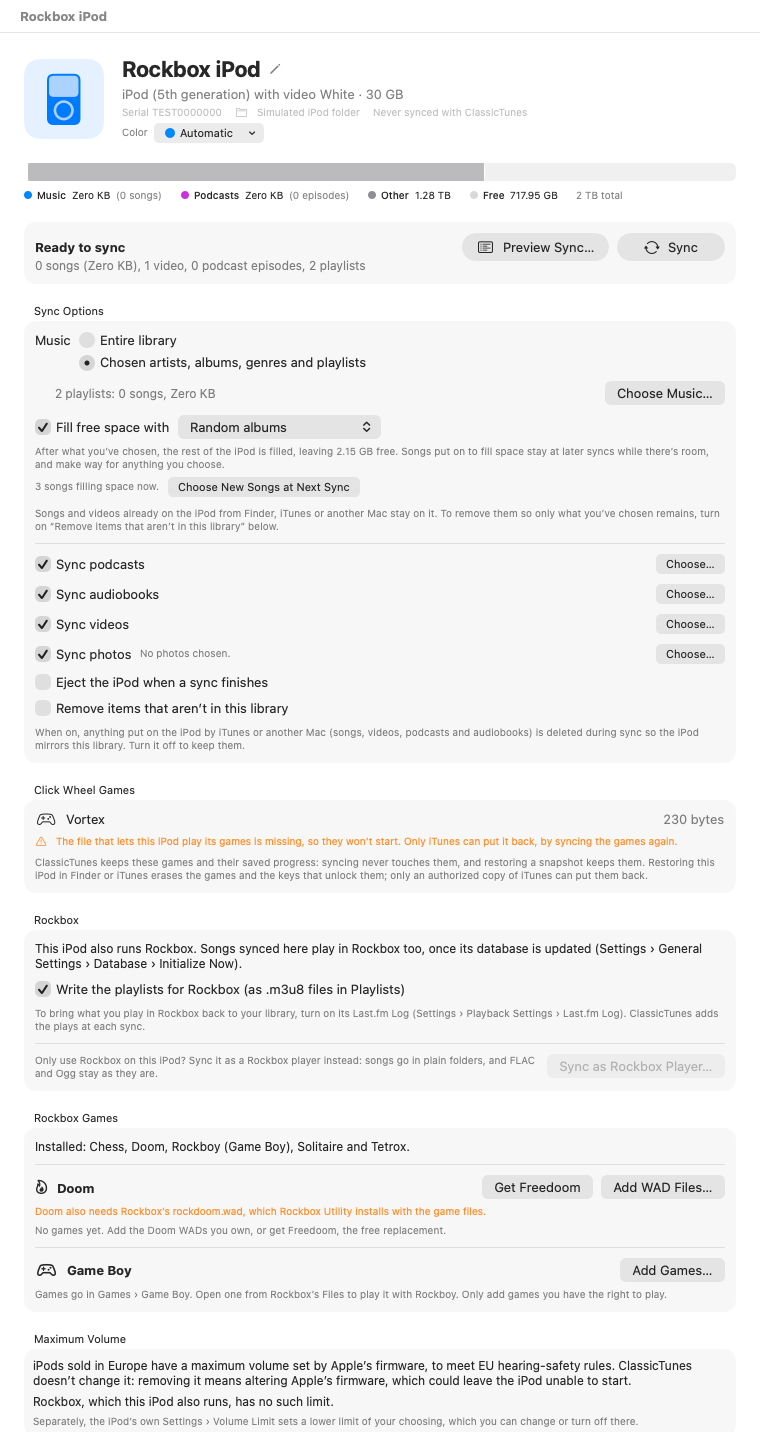
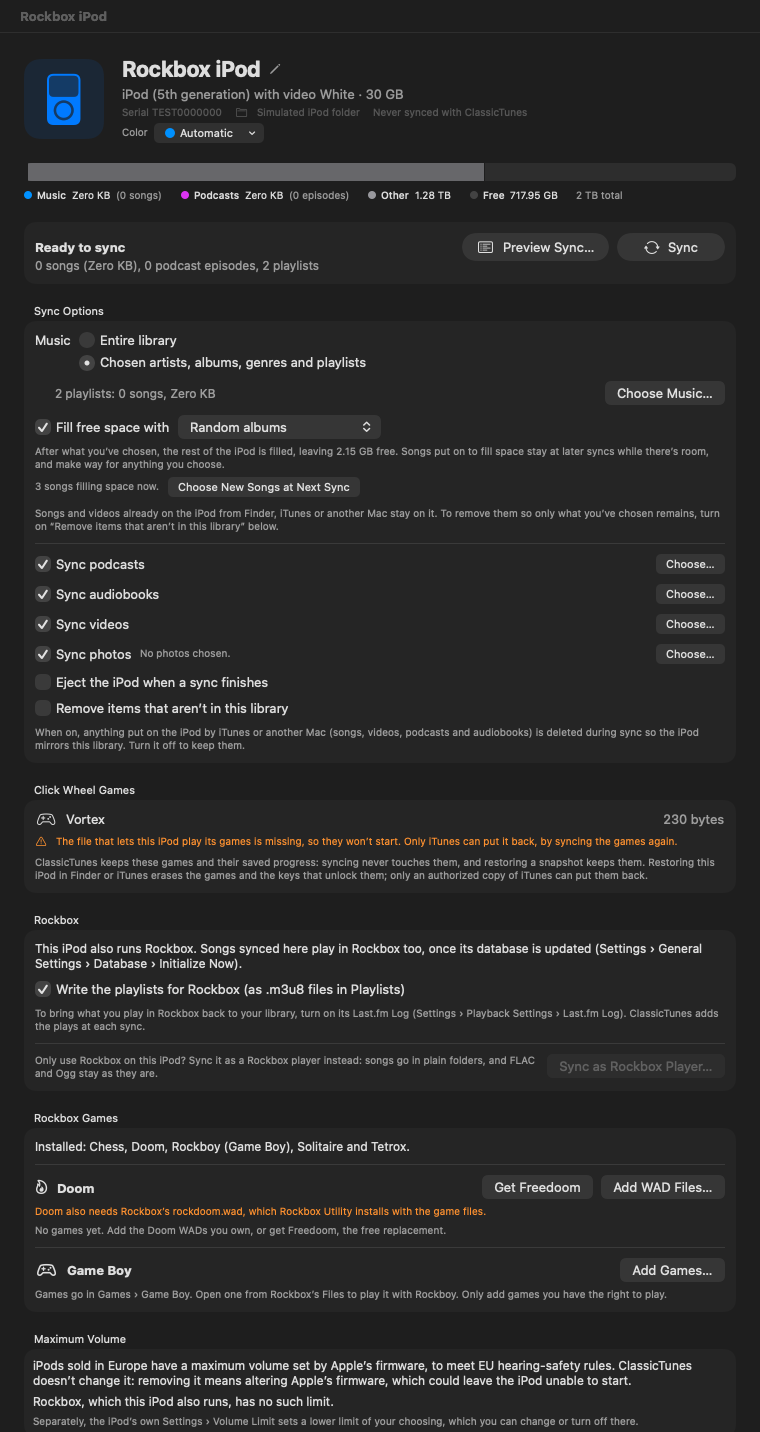
Music
Choose one:
- Entire library: every song in the library. Click Leave Some Out… to uncheck albums, single songs and playlists that shouldn't go on this iPod. Everything else syncs, including songs you add later.
- Chosen artists, albums, genres and playlists: only what you choose. Click Choose Music… to pick.
Under the choice, a line sums up what's chosen, such as "2 artists and 5 albums: 812 songs, 4.2 GB". With nothing chosen yet it says "Nothing chosen yet."
Choose Music…
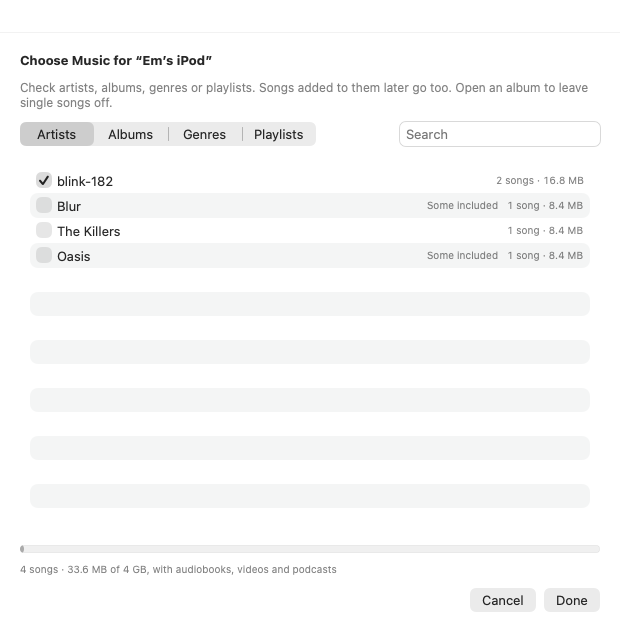
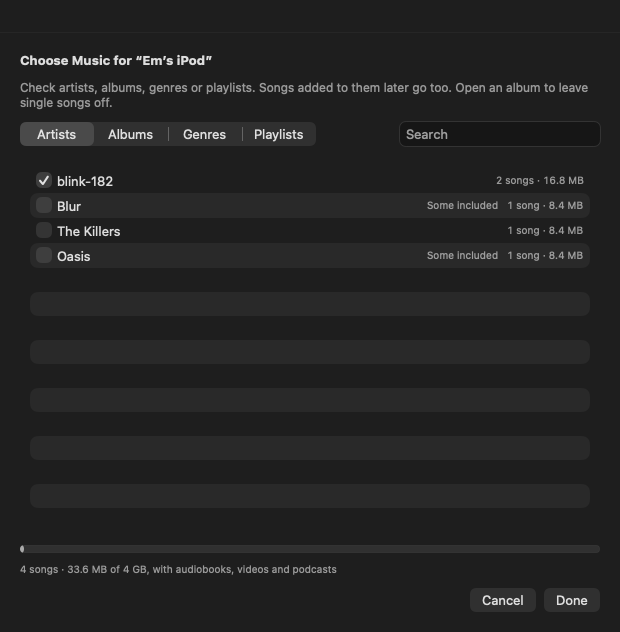
The window has tabs for Artists, Albums, Genres and Playlists, with a Search field. Check what you want on the iPod. Each row shows how many songs it has and how much space they take. A row marked "Some included" already has some of its songs on the iPod through another choice (for example, an album by an artist you've checked).
- Songs added later go too. Checking an artist, album, genre or playlist means its songs at each sync, not just the ones it has today.
- Leave single songs off. Open an album (click its arrow) and uncheck the songs you don't want. Songs that aren't chosen by anything are marked "Not chosen".
- A running total at the bottom shows how many songs are chosen and how much space they take against the iPod's capacity, "with audiobooks, videos and podcasts". The bar turns red when it's more than the iPod holds.
Click Done to save, or Cancel to leave things as they were.
With Entire library, the same window is called Leave Music Off and has only the Albums and Playlists tabs. Everything is synced except what you uncheck. An album with only some songs unchecked is marked "Some left off".
Fill free space
When you sync chosen music, ClassicTunes can top the iPod up with more songs, like iTunes' Autofill. Turn on Fill free space with and choose:
| Choice | Fills the space with |
|---|---|
| Songs you haven't played | Songs with no plays, in a random order. |
| Highest rated songs | Rated songs, highest first. |
| Most played songs | Your most played songs first. |
| Recently added songs | The songs added to the library most recently. |
| Random albums | Whole albums, chosen at random. |
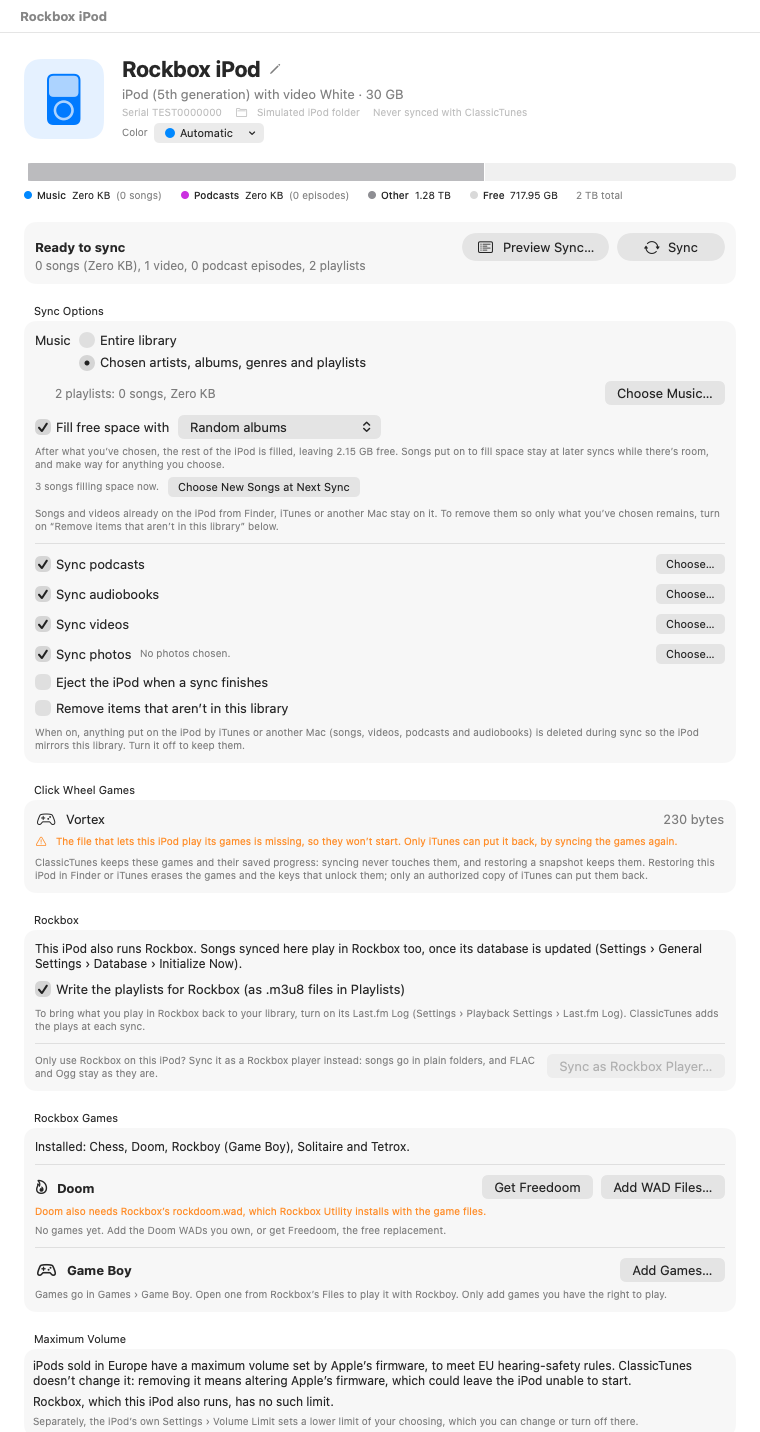
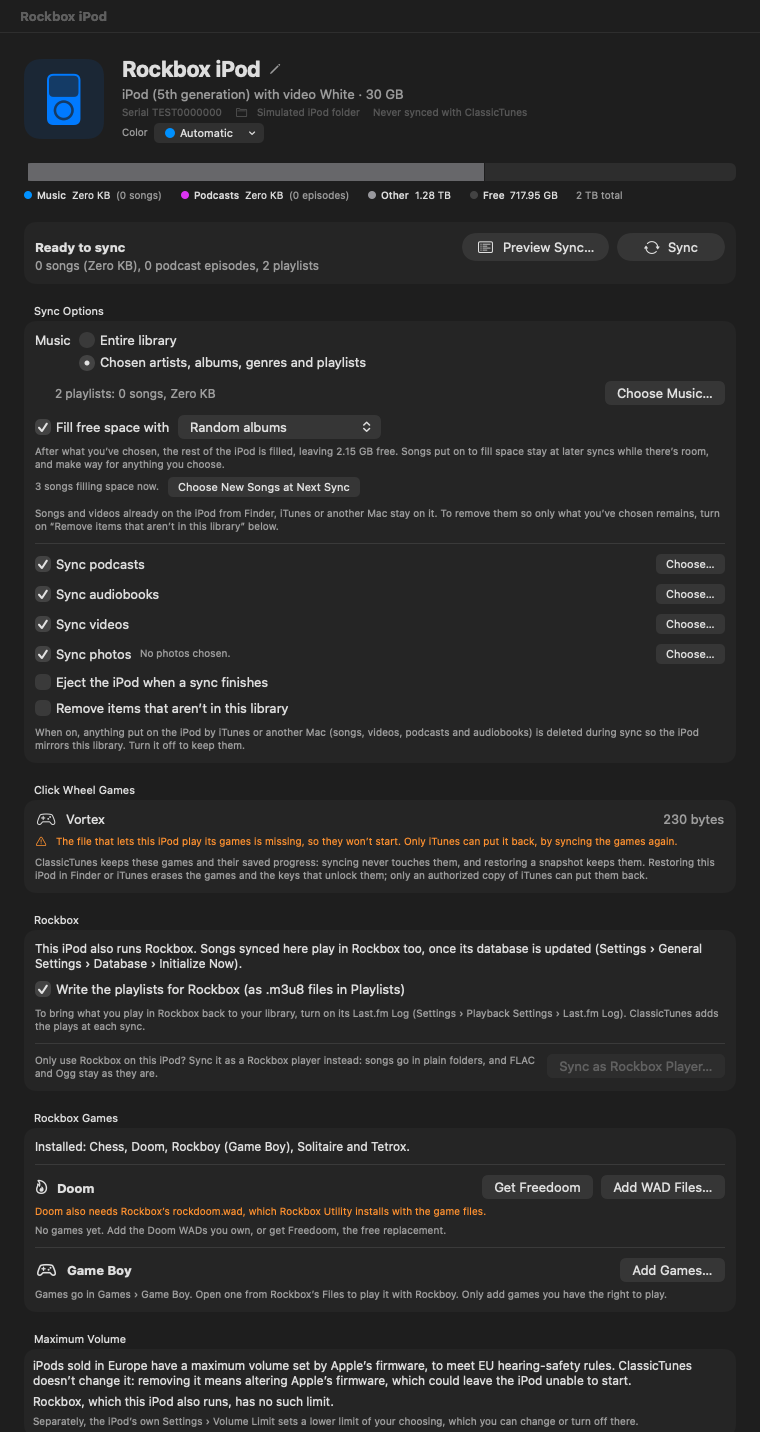
How it works:
- What you've chosen always goes on first. Filling uses what's left.
- Some space is always left free: 5% of the iPod, at least 200 MB and at most 2 GB. The note under the choice says how much for this iPod.
- Songs put on to fill space stay at later syncs while there's room, so the iPod doesn't change completely every time. They make way for anything you choose.
- Once some songs are filling space, the note says how many. Click Choose New Songs at Next Sync to swap them all for a fresh choice.
- Songs you've left off the iPod never fill space.
Fill free space isn't available with Entire library, since that leaves nothing else to fill the space with.
When what's chosen won't fit
If what you've chosen is more than the iPod holds, the sync panel says so in orange before you sync, with the total, the iPod's capacity, and the largest of your choices. Uncheck some, or choose playlists instead of the entire library.
Podcasts, audiobooks and videos
Each has a checkbox and a Choose… button:
- Sync podcasts: the episodes each show keeps for iPods. Choose… lists your shows; uncheck any that shouldn't go on this iPod. Podcasts are turned off on the first three generations of iPod, whose firmware has no Podcasts menu. See Podcasts.
- Sync audiobooks: your audiobooks, in the iPod's Audiobooks menu. Choose… lists your books. See Audiobooks.
- Sync videos: your library's videos, converted for the iPod. Choose… lists them. See Videos.
In each Choose… window, checked items sync. Use Check All and Uncheck All to start over, and Search to find one. When some are left off, the number shows beside the checkbox, such as "3 left off".
Photos
Sync photos puts your chosen photos in the iPod's Photos menu, on iPods with a color screen. The line beside it sums up what's chosen; Choose… picks albums, years and months, a space limit, and whether videos from Photos go too. See Photos.
Remove items that aren't in this library
This decides what happens to songs, videos, podcasts and audiobooks that are already on the iPod but didn't come from this library (put there by iTunes, Finder or another Mac):
- Off (the starting choice): they stay on the iPod, alongside what you sync.
- On: they're deleted during the sync, so the iPod mirrors this library.
Items this library put on the iPod are always removed when you take them off, whichever way this is set.
Important: Turning this on deletes music from the iPod that may not be anywhere else. If the iPod has songs you don't have on your Mac, use Import Media from iPod… first (see iPod tools), or take a snapshot.
What a sync keeps, converts and reads back
Read back from the iPod
Each sync brings back what happened on the iPod since the last one, before anything changes:
- Play counts, last played dates and ratings go into your library. Plays made on the iPod reach your library even if the sync then fails. With scrobbling on, they're sent to ListenBrainz too.
- Your place in audiobooks (and in songs and episodes that remember their place) syncs both ways.
- On-The-Go playlists made on the iPod become playlists in your library, named "On-The-Go 1", "On-The-Go 2" and so on, and stay on the iPod.
- Smart playlists someone made on the iPod with iTunes join your library, rather than being lost.
Converted on the way
- Songs in formats the iPod can't play are converted to AAC as they're copied. Some songs can't be converted this way (for example, sample rates above 48 kHz); they're left off, and the summary says so. iPod › Find Songs iPods Can't Play… can convert them once for good. See Tidying up.
- Videos are converted to a format the iPod plays (H.264, 320×240), once, and the converted copy is kept on the Mac for later syncs.
- Album art is converted to the iPod's own thumbnail sizes. To leave artwork off, turn off Sync album artwork in Settings › General › Syncing.
Never touched
- Click wheel games and their saved progress. See iPod tools.
- Files you keep on the iPod in disk mode, outside its music folders.
- Songs from elsewhere, unless Remove items that aren't in this library is on.
Skipped
- Apple Music songs and other copy-protected files, which no iPod can play.
- Songs whose files are missing from the Mac. The summary counts them as failed, and Preview Sync lists them.
Settings that affect syncing
These are in Settings › General › Syncing, and are set for each library:
| Setting | What it does |
|---|---|
| Open ClassicTunes when an iPod is connected | Opens ClassicTunes by itself when you plug in an iPod. See Connecting an iPod. |
| Eject the iPod when a sync finishes | Ejects every iPod in this library after each sync. Also in each iPod's Sync Options. |
| Sync album artwork | Puts album art on the iPod, converted to its thumbnail sizes. On to start with. |
Snapshot settings are in Settings › Backups. See Snapshots.
From AppleScript and Shortcuts
Scripts can set what each iPod syncs and start a sync. A script can only sync an iPod that has already been synced with the open library from inside ClassicTunes, and a first or large sync still asks about a snapshot in the app. sync returns as soon as the sync starts, so check syncing to know when it's done.
tell application "ClassicTunes"
    set myIPod to iPod 1
    set syncs entire library of myIPod to false
    set chosen playlists of myIPod to {"Running", "Road Trip"}
    set chosen artists of myIPod to {"Radiohead"}
    set fill free space of myIPod to unplayed songs
    sync myIPod
    delay 2
    repeat while syncing of myIPod
        delay 5
    end repeat
    eject myIPod
end tell
fill free space takes no fill, unplayed songs, highest rated songs, most played songs, recently added songs or random albums. Albums are given as "Artist — Album". See AppleScript for every property.
In Shortcuts (macOS 13 and later), use Sync iPod (one iPod, or every connected iPod), Choose Music to Sync, Set Fill Free Space, Choose Photos to Sync and Eject iPod. See Shortcuts.